


You’ve had the same Apple ID email for years, carefully curated over countless device setups and app purchases. But times change, and so do your email preferences. Perhaps you’ve switched internet providers, want a more professional address, or simply desire a fresh start. Whatever your motivation, changing your Apple ID email isn’t as daunting as it might seem, provided you approach it with a clear understanding of the process. This comprehensive guide will walk you through each step, ensuring a smooth transition and helping you avoid potential pitfalls.
Before diving into the “how-to,” it’s helpful to consider why you’re making this change. Your Apple ID is the central hub for all your Apple services – from iCloud and the App Store to iMessage and FaceTime. Knowing your reasons can help you anticipate potential impacts and ensure you’re making an informed decision.
The Evolution of Email Addresses
Think back to when you first created your Apple ID. For many, it was during a time when free webmail services were burgeoning, or perhaps it was tied to an old internet service provider (ISP) account. Over the years, your email needs and preferences have likely evolved.
- ISP Email Dependency: If your Apple ID is tied to an email address provided by an ISP that you no longer use, changing it is crucial. Losing access to that email can lock you out of your Apple ID if you ever need to verify your identity or reset your password.
- Professional vs. Personal: You might have used a personal email for your initial Apple ID setup, but now you want a more professional address for your work-related Apple services. Conversely, you might want to switch from a work email to a more personal one.
- Security and Privacy Concerns: An old, widely used email address might be more susceptible to spam or phishing attempts. A new, dedicated email for your Apple ID can enhance your security.
- Simply a Fresh Start: Sometimes, you just want to declutter and simplify your digital life. A new email address can be part of that process.
The Importance of a Secure and Accessible Email
Regardless of your reason, the key takeaway is to choose a new email address that you will actively use and keep secure. This email address will become the primary communication channel for all things Apple, including security notifications, password reset requests, and purchase confirmations.
- Two-Factor Authentication (2FA) Recovery: Your Apple ID is likely protected by Two-Factor Authentication. If you ever lose access to your trusted devices, Apple might send a verification code to your associated email.
- Password Resets: Should you forget your Apple ID password, the recovery process often involves sending a reset link to your primary email address.
- Apple Communications: All receipts, service updates, and important announcements from Apple will be sent to your updated email.
If you’re looking to change your Apple ID email, you might find it helpful to read about how technology can empower small businesses. For insights on leveraging generative AI to scale micro-businesses, check out this related article: Empowering Micro Businesses: Scaling with Generative AI. This resource provides valuable information that can enhance your understanding of digital tools while managing your Apple ID and other online accounts.
Preparing for the Change: Essential Pre-Steps
Changing your Apple ID email isn’t something you should do on a whim. A little preparation can go a long way in preventing headaches and ensuring a seamless transition across all your Apple devices and services. Don’t skip these crucial steps!
Ensure You Have Access to Everything
Before making any changes, you need to prove that you are, in fact, the legitimate owner of your Apple ID.
- Know Your Current Apple ID Password: This is non-negotiable. You’ll need it to sign in and authorize the change. If you’ve forgotten it, you’ll need to reset your password before attempting to change your email.
- Access to Your Current Apple ID Email Address: Apple will send a verification code to your current email address to confirm the change. Make sure you can log in to that inbox.
- Access to Your New Email Address: Similarly, Apple will send a verification code to your new email address to confirm you own it. Set up and test this new email beforehand.
Update All Your Devices
Your Apple ID is linked to every Apple device you own. To prevent disruptions, you should sign out of your Apple ID on as many devices as possible before making the change, and then sign back in afterwards. While not strictly mandatory for the email change itself, it’s good practice to ensure consistency.
- Sign Out of iCloud on All Devices (Temporarily): Go to Settings > Your Name and scroll down to “Sign Out.” This will remove your iCloud data from the device and prepare it for the updated Apple ID.
- Sign Out of iTunes & App Store: On iOS/iPadOS, go to Settings > Your Name > Media & Purchases > Sign Out. On Mac, open the App Store, click Store > Sign Out.
- Sign Out of Messages and FaceTime: For good measure, do this on all your devices to prevent old email addresses from lingering. On iOS/iPadOS, it’s in Settings > Messages > Send & Receive and Settings > FaceTime. On Mac, it’s in Messages > Preferences and FaceTime > Preferences.
Back Up Your Important Data (Just in Case)
While changing your Apple ID email doesn’t directly impact your data, it’s always a good idea to perform a backup before making significant changes to your primary account.
- iCloud Backup: Ensure your iPhone, iPad, and iPod touch are backed up to iCloud. Go to Settings > Your Name > iCloud > iCloud Backup > Back Up Now.
- Mac Backup (Time Machine): If you use a Mac, make a fresh Time Machine backup.
- Critical Files: If you have photos, documents, or other critical files stored locally or in specific apps, ensure they are also backed up to a secondary location or service.
The Core Process: Step-by-Step Instructions

Now that you’re prepared, let’s get into the actual process of changing your Apple ID email. You have two primary methods: doing it directly on your device or via the Apple ID account page. If your Apple ID ends with @icloud.com, @me.com, or @mac.com, you’ll need to use a slightly different approach.
Method 1: Changing Your Apple ID Email on an iPhone, iPad, or iPod Touch
This is often the most convenient method for many users. Ensure you are signed in with the Apple ID you wish to change.
- Open Settings: Tap the “Settings” app icon on your home screen.
- Tap Your Name (Apple ID Banner): At the very top of the Settings menu, you’ll see your name and picture. Tap on this.
- Select “Name, Phone Numbers, Email”: This option will take you to your contact information linked to your Apple ID.
- Tap “Edit” next to “Reachable At”: Here you’ll see your current Apple ID email address listed. Tap the “Edit” button.
- Remove Your Current Email: You’ll see a red minus circle next to your current Apple ID email. Tap it, then tap “Delete.”
- Important Note: If your Apple ID email is greyed out or you don’t see an option to delete it, it might mean your Apple ID is already an @icloud.com, @me.com, or @mac.com address. In this case, refer to the special instructions for those email types further down.
- Add Your New Email Address: Tap “Continue” when prompted. Then, tap “Add Email or Phone Number” and choose “Add an Email Address.”
- Enter Your New Email: Carefully type in the new email address you want to use for your Apple ID. Double-check for typos! Then tap “Done.”
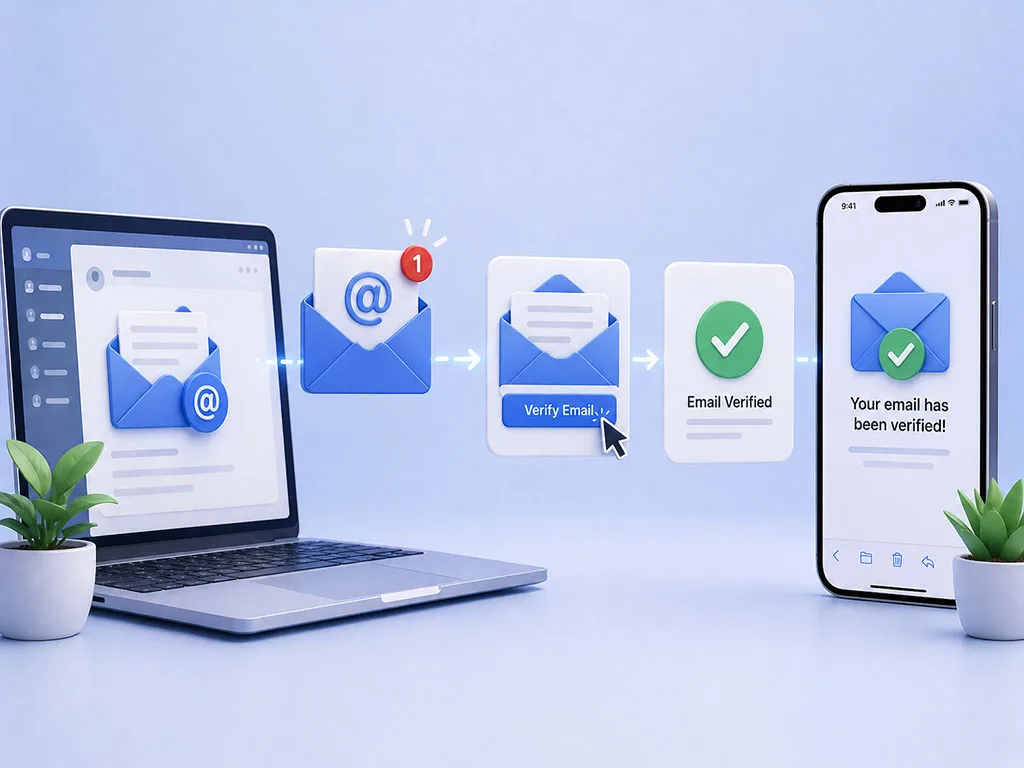
- Verify Your New Email: Apple will send a verification code to the new email address you just entered. Check that inbox, retrieve the 6-digit code, and enter it into your device when prompted.
- Confirm the Change: You may be asked to enter your Apple ID password one more time to confirm the change.
- Sign Back In Where Necessary: After the email is changed, your devices may automatically update. However, it’s good practice to go through your devices and ensure you are signed in everywhere with your new Apple ID email address. This includes iCloud, App Store, Messages, and FaceTime.
Method 2: Changing Your Apple ID Email via the Apple ID Account Page
This method is ideal if you prefer to make changes from a web browser or if you don’t have an iOS device readily available.
- Go to the Apple ID Account Page: Open a web browser (Safari, Chrome, Firefox, etc.) and navigate to appleid.apple.com.
- Sign In: Enter your current Apple ID email address and password. If you have Two-Factor Authentication enabled, you’ll need to enter the verification code sent to one of your trusted devices.
- Navigate to “Account” Section: Once signed in, you’ll see various sections. Look for “Account.”
- Click “Edit” next to “Apple ID and Primary Email Address”: This option is found within the “Account” section.
- Change Apple ID: Click “Change Apple ID…” or a similar option if present.
- Enter Your New Email: Type the new email address you want to use.
- Important Note: Similar warning here: If you cannot modify your Apple ID email, it might be an @icloud.com, @me.com, or @mac.com address. Refer to the special instructions for those further down.
- Verify Your New Email: Apple will send a verification code to this new email address. Check your inbox, retrieve the code, and enter it on the Apple ID account page to confirm.
- Sign Out and Back In on Devices: After the change is confirmed, you will need to sign out of your Apple ID on all your Apple devices (iPhone, iPad, Mac, Apple Watch, Apple TV) and then sign back in using your new Apple ID email address and your existing Apple ID password.
Special Considerations for @icloud.com, @me.com, or @mac.com Apple IDs
If your Apple ID currently ends with @icloud.com, @me.com, or @mac.com, you cannot change it to a different third-party email address (like Gmail, Yahoo, Outlook, etc.). These Apple-provided email addresses are permanently linked to your Apple ID.
- **What You Can Do:** You can add additional “Reachable At” email addresses to your account. These are secondary emails that can receive messages and notifications, but they will not replace your primary Apple ID.
- **What You Cannot Do:** You cannot convert an iCloud.com primary Apple ID to a Gmail.com primary Apple ID.
- Your Options:
- Create a New Apple ID: If it’s absolutely critical for your primary Apple ID to be a non-Apple email, you would unfortunately need to create a brand new Apple ID with your desired email address. This is a significant undertaking, as it means losing all your purchased apps, media, and iCloud data associated with your old Apple ID. This option should be considered a last resort.
- Use an Existing Third-Party Email as Primary (if already a third-party ID): If your current Apple ID is already a third-party email (e.g., Gmail) and you want to switch to another third-party email (e.g., Outlook), then the methods above will work perfectly. The restriction only applies when your primary Apple ID is an @icloud.com, @me.com, or @mac.com address.
Post-Change Checklist: Ensuring Everything Works


The email address for your Apple ID has been successfully changed! But you’re not entirely done. There are a few crucial steps you need to take to ensure all your services are connected properly and functioning as expected. This helps prevent any lingering issues or confusion.
The All-Important Sign-Out/Sign-In Cycle
This is perhaps the most critical step after changing your Apple ID email. Even if you signed out of some services beforehand, you must sign back in on all your devices.
- Why It’s Essential: Your devices still remember your old Apple ID email address. To synchronize with the new one, they need a refresh. Signing out and then back in forces the system to update its authentication tokens.
- Your iPhone/iPad/iPod touch:
- Go to Settings > Your Name.
- Scroll down and tap Sign Out. You may be asked if you want to keep data like Contacts or Calendars on your device. Choose to keep them if you want local copies, but understand that new changes won’t sync until you sign back in.
- Restart your device (optional, but good practice).
- Go back to Settings, tap “Sign in to your iPhone,” and enter your new Apple ID email and your existing Apple ID password.
- Your Mac:
- Go to System Settings (or System Preferences on older macOS versions).
- Click on Your Name (or Apple ID).
- Click Sign Out. Follow the prompts.
- Restart your Mac (optional).
- Go back to System Settings, click “Sign in with your Apple ID,” and enter your new Apple ID email and your existing Apple ID password.
- Apple Watch: If your Apple Watch is paired with your iPhone, it should update automatically. If you notice issues, unpair and re-pair it.
- Apple TV: Go to Settings > Users and Accounts > iCloud and sign out/in. Also check iTunes and App Store.
- HomePod/HomePod mini: These devices are usually managed through the Home app on your iOS device. Changes here should propagate.
Verify All Apple Services
Once you’ve signed back into your Apple ID across all your devices, take a few minutes to confirm that every service is working correctly.
- iCloud:
- Check your iCloud storage in Settings > Your Name > iCloud.
- Ensure Photos, Mail, Contacts, Calendars, Reminders, and Notes are syncing.
- For Mail, specifically check that your @icloud.com email still works and that you can send and receive emails.
- App Store & iTunes Store:
- Try downloading a free app or updating an existing one.
- Verify your purchase history is intact.
- Ensure your payment methods are still associated and up-to-date.
- iMessage & FaceTime:
- Go to Settings > Messages > Send & Receive. Ensure your new Apple ID email is selected for starting new conversations and that your phone number is still active.
- Do the same for FaceTime in its settings.
- Send a test iMessage and make a test FaceTime call.
- Apple Music/Apple TV+: Ensure you can access your subscriptions and stream content.
- Find My: Verify that your devices appear correctly in the Find My app and that you can locate them.
- Apple Pay: If you use Apple Pay, ensure your cards are still registered and functional. You might need to re-add them if you encountered issues during the sign-out/sign-in process, though this is rare.
- HomeKit: If you use HomeKit devices, ensure they are still controllable and that automations are running.
Update Other Connected Services (Non-Apple)
Your Apple ID is deeply integrated into the Apple ecosystem, but you might also use it or its associated email for third-party services.
- Email Forwarding/Aliases: If you used your old Apple ID email for any email forwarding or aliases, consider updating those to your new email.
- Third-Party Apps & Websites: Some apps or websites allow you to “Sign in with Apple.” If you used this feature, it automatically updates to your new Apple ID email. However, if you used your email address directly to register for other services, you might want to update those accounts as well.
- Family Sharing: If you are part of an Apple Family Sharing group, ensure everyone in the group has updated their devices and can still access shared purchases and services. Your role in Family Sharing remains tied to your Apple ID, not just the email address.
If you’re looking to change your Apple ID email, you might find it helpful to explore related topics on digital account management. A great resource is an article that discusses creating seamless email journeys and website personalization, which can enhance your overall online experience. You can read more about it here. This information can provide insights that complement your understanding of managing your Apple ID effectively.
Troubleshooting Common Issues
| Step | Description |
|---|---|
| 1 | Go to appleid.apple.com and sign in with your current Apple ID. |
| 2 | Click on “Edit” next to the “Account” section. |
| 3 | Click on “Change Email Address”. |
| 4 | Enter your new email address and click “Continue”. |
| 5 | Follow the on-screen instructions to verify your new email address. |
Even with careful preparation, sometimes things go awry. Here’s a look at some common problems you might encounter and how to resolve them.
Verification Email Not Arriving
This is a common hiccup. Don’t panic!
- Check Spam/Junk Folders: Most often, the verification code ends up in the spam or junk folder of your new email inbox.
- Allow Time: Email delivery isn’t always instantaneous. Give it a few minutes.
- Resend the Code: Most prompts allow you to tap “Resend Code” if it doesn’t arrive within a reasonable timeframe.
- Double-Check Email Address: Ensure you typed the new email address correctly. A single typo will send the code to a non-existent or incorrect address.
- Firewall/Email Filters: If you use a very strict email service or have extensive filtering, temporarily ease up on those settings, or add Apple’s domain (apple.com) to your safe senders list.
“This email address is not available” Error
This message usually means one of two things:
- The Email is Already an Apple ID: The email address you’re trying to use is already associated with another Apple ID. You cannot use an email address that is already active as an Apple ID, even if it’s one you own for a secondary account.
- Recently Used Email: An email address that was recently associated with another Apple ID (and then unlinked) might have a waiting period before it can be used for a new Apple ID. This is a security measure. You might need to wait 30 days or consider a different email address.
Issues with Signing Into Services After the Change
If you’ve changed your Apple ID email but some services on your devices are still asking for the old email or refuse to sign in:
- Force Quit Apps: Close and reopen the problematic apps (e.g., App Store, Messages).
- Restart Devices: A device restart can often clear up cached login information.
- Sign Out and Sign Back In (Again): If you followed the post-change checklist, but still have issues, try signing out of iCloud completely, restarting, and then signing back in again slower and more deliberately.
- Check for Leftover Profiles: On rare occasions, old configuration profiles might cause issues. This is usually more relevant in enterprise settings, but worth considering if all else fails.
Lost Data or Purchases
Changing your Apple ID email should not result in data loss or the disappearance of purchases. Your purchases are tied to your Apple ID account, not specifically the email address used to log in.
- If You See Missing Data:
- Double-check Sign-in: Ensure you are indeed signed in with your new Apple ID email. Sometimes, people accidentally sign back in with an old, unused Apple ID.
- iCloud Settings: Verify that all your iCloud services (Photos, Contacts, etc.) are toggled “on” in Settings > Your Name > iCloud.
- Restore from Backup: If you made a backup before the change, and truly believe data is gone, restoring from that backup might be an option, but this should be a last resort.
- If You See Missing Purchases:
- App Store Account: Go to the App Store, tap your profile picture, and check “Purchased.” Ensure you’re seeing your expected history.
- Check Different Accounts: If you have multiple Apple IDs (even if only one is active), sometimes purchases are split between them. This is why it’s generally discouraged to have more than one Apple ID.
Contacting Apple Support
If you encounter persistent issues that you cannot resolve using these troubleshooting steps, don’t hesitate to contact Apple Support. They have tools to diagnose account-specific problems and can provide personalized assistance. Be prepared to verify your identity thoroughly when you contact them.
Changing your Apple ID email is a significant update to your digital identity. By following this guide, preparing diligently, executing carefully, and verifying thoroughly, you can ensure a smooth and successful transition, keeping your Apple ecosystem running seamlessly with your updated email address.
FAQs
What is an Apple ID email?
An Apple ID email is the email address associated with your Apple ID account, which is used to access and use various Apple services such as iCloud, iTunes, App Store, and more.
Why would I want to change my Apple ID email?
You may want to change your Apple ID email for various reasons, such as if you no longer have access to the current email address, or if you simply want to use a different email for your Apple ID account.
How can I change my Apple ID email?
To change your Apple ID email, you can do so through the Apple ID account management website or through the settings on your Apple device. You will need to verify your identity and may need to answer security questions or use two-factor authentication.
Are there any restrictions or limitations when changing my Apple ID email?
When changing your Apple ID email, there may be certain restrictions or limitations, such as not being able to use an email address that is already associated with another Apple ID account, or needing to verify the new email address.
What should I do after changing my Apple ID email?
After changing your Apple ID email, it is important to update the email address on all your Apple devices and services to ensure seamless access and functionality. Additionally, you may need to use the new email address for future communications and account management.