


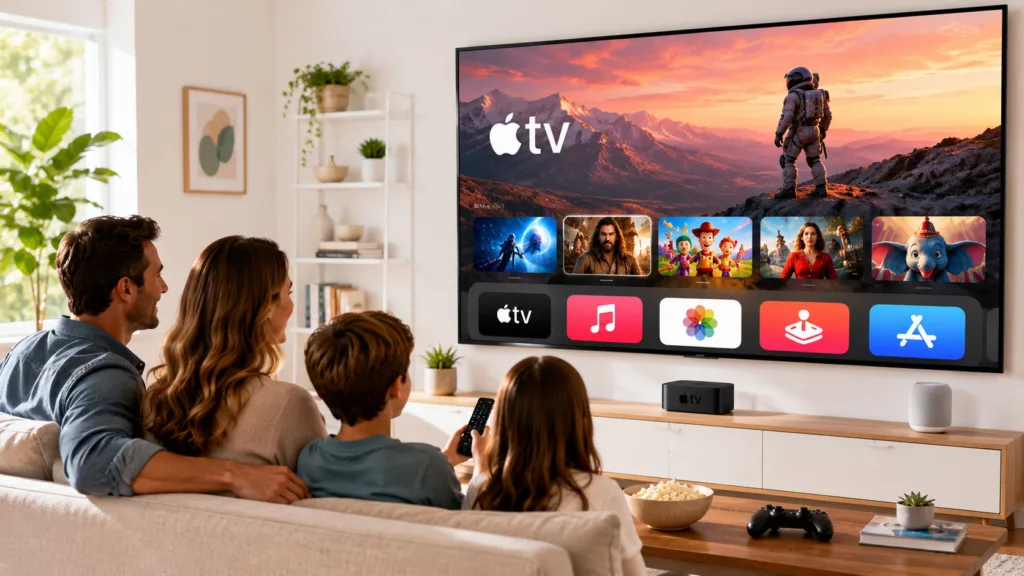
You’ve unboxed it, plugged it in, and perhaps even navigated through the initial setup. But you might be wondering, “Is this all there is to Apple TV?” The answer is a resounding no. Your sleek, little black box is a gateway to a universe of entertainment, and with the right approach, you can transform it from a simple streaming device into the absolute centerpiece of your home viewing experience. This isn’t just about plopping down and passively watching; it’s about actively engaging with a diverse and evolving ecosystem designed to cater to your every whim.
Think of your Apple TV not just as a device, but as a sophisticated hub. It’s the place where blockbuster movies meet indie gems, where binge-worthy series reside alongside educational documentaries, and where your music library seamlessly integrates with breathtaking visualizers. It’s the portal to interactive gaming, immersive fitness routines, and even the latest news and sports updates. But to truly harness this power, you need to understand its capabilities and learn to navigate its intricacies. This guide is your roadmap to becoming an Apple TV expert, ensuring you squeeze every drop of enjoyment and utility out of your device. Forget endless scrolling and decision paralysis; we’re here to help you curate an entertainment landscape that’s as unique and dynamic as you are.
Mastering the Core Experience: Navigation and App Integration
The foundation of your Apple TV experience lies in its intuitive interface and its vast app store. Getting comfortable with how you move around and how you bring in new content is paramount to unlocking its full potential.
Navigating with the Siri Remote
The Siri Remote is your primary tool for interacting with Apple TV. It’s designed for simplicity, but understanding its nuances can significantly speed up your navigation.
Gestures and Touchpad Control
The smooth, glass touchpad at the top of the remote isn’t just for scrolling. Pay attention to how you can swipe left, right, up, and down to move between apps, select items, and navigate menus. A gentle tap registers a selection, while a firmer press can often reveal more options or bring up context menus. Experiment with flicking your finger for rapid scrolling through long lists – it’s surprisingly effective once you get the hang of it. Double-tapping can often take you back to the previous screen or activate specific shortcuts.
Voice Commands with Siri
Siri is your intelligent assistant on Apple TV, and it’s more powerful than you might realize. Don’t just use it for searching for shows. Try asking for specific genres, actors, or even moods. “Show me funny comedies from the 80s,” or “Find documentaries about space” are just the beginning. You can also control playback: “Pause,” “Rewind 30 seconds,” “What did they say?” (which cues up subtitles and rewinds a few seconds), and “Play from the beginning.” Beyond entertainment, you can even ask for weather updates or sports scores, seamlessly integrating information into your viewing environment. The more you use Siri, the better it becomes at understanding your preferences.
App Layout and Organization
Apple TV allows you to customize your home screen. Don’t let it become a cluttered mess. Regularly review your installed apps. Delete those you no longer use to keep your dock clean and less overwhelming. You can rearrange apps by pressing and holding the touchpad until the icons begin to jiggle, then using the touchpad to move them to your desired position. Grouping similar apps together, like all your sports apps or all your streaming services, can make finding what you want much faster. Creating folders is also an option for even finer-grained organization.
Expanding Your Content Library: The App Store
The Apple TV App Store is where your entertainment universe truly expands. It’s not just about Netflix and Hulu; it’s a treasure trove of diverse content.
Discovering Essential Streaming Services
Beyond the big players, explore niche streaming services that cater to your specific interests. Are you a cinephile? Look for Criterion Channel or MUBI. Into documentaries? CuriosityStream is a fantastic option. Passionate about anime? Crunchyroll has you covered. Take the time to browse the “Apps” tab and explore categories that align with your hobbies and passions. Don’t be afraid to try free trials to experience what a service offers before committing.
Exploring Beyond Movies and TV Shows
The App Store is brimming with content that goes far beyond traditional linear viewing.
Gaming on Apple TV
Apple Arcade offers a curated selection of high-quality, ad-free games playable with a controller or even your iPhone as a gamepad. These are often unique experiences you won’t find on consoles. Beyond Arcade, many other games are available, ranging from puzzle games to more action-oriented titles. If you have an Apple TV 4K, the HDMI ARC support can be leveraged for enhanced audio with compatible soundbars and receivers, making your gaming sessions more immersive.
Fitness and Wellness Apps
Transform your living room into a personal gym. Apps like Apple Fitness+, Peloton, Nike Training Club, and Strava offer a vast array of workout classes, from yoga and HIIT to cycling and strength training. Many of these incorporate Apple Watch integration for real-time heart rate tracking and progress monitoring. This allows you to exercise at your convenience, following world-class instructors from the comfort of your home.
Educational and Documentary Platforms
Beyond standard streaming, the App Store hosts a wealth of educational content. Platforms like MasterClass offer courses from renowned experts in various fields. Documentaries abound, covering everything from nature and history to science and social issues. Curious about a specific topic? There’s likely an app or service available to satiate your thirst for knowledge.
If you’re looking to enhance your Apple TV experience, you might find it interesting to explore how effective email marketing can boost your engagement with viewers. For insights into the best email marketing agencies and the benefits they offer, check out this article: Best Email Marketing Agencies: Services & Benefits. This resource can help you understand how to effectively communicate with your audience and keep them informed about your latest content and updates.
Curating Your Viewing Experience: Personalization and Discovery
Once you have your apps and know how to navigate, the real magic happens when you start tailoring your Apple TV to your preferences. It’s about making sure the right content finds you, not the other way around.
Leveraging the “Up Next” Queue and Watchlist
The “Up Next” feature is incredibly powerful for keeping track of what you want to watch. As you browse different streaming apps, look for options to add shows or movies to your “Up Next” queue on Apple TV. This consolidates your viewing list across multiple services, appearing in a prominent row on your home screen.
Building Your Personalized Watchlist
Within individual streaming apps like Apple TV+, Netflix, or Disney+, you’ll find options to add content to a personal watchlist. This is distinct from the system-wide “Up Next” and allows you to curate deeper lists within each service. Think of it as your digital library of content you’re interested in exploring at a later date. Regularly reviewing and pruning these lists ensures they remain relevant and don’t become overwhelming.
The Power of the TV App
The centralized TV app on Apple TV is your personal entertainment curator. It aggregates content from many of your subscribed streaming services (though not all) into a single, unified interface.
Unified Search and Discovery
Here, you can search across multiple apps simultaneously. If you’re looking for a specific movie or actor, the TV app will show you where it’s available. This saves you from individually checking each app, drastically reducing search time.
Personalized Recommendations
The TV app learns your viewing habits and provides personalized recommendations based on what you watch and what’s trending. It’s a fantastic tool for discovering new shows and movies you might otherwise miss, especially for content available on services you already subscribe to. Explore the “Watch Now” and “For You” sections to uncover hidden gems.
Elevating Your Audio-Visual Enjoyment: Sound and Picture Settings
The content is king, but how you experience it can be dramatically improved with a bit of attention to your Apple TV’s audio and visual settings.
Optimizing Picture Quality for Your TV
Your Apple TV 4K is capable of delivering stunning visuals, but it needs to be configured correctly to take advantage of your TV’s capabilities.
HDR (High Dynamic Range) and Dolby Vision
If your TV supports HDR, especially Dolby Vision, ensure your Apple TV is set to output in these formats. Navigate to Settings > Video and Audio and select the appropriate “Format” option. You’ll see choices like SDR, HDR, and Dolby Vision. For the best picture, choose the setting that your TV supports and offers the most vibrant and detailed image. The device will often auto-detect the best settings, but manual adjustments can sometimes fine-tune the output for a specific display.
Frame Rate Matching and Chroma Subsampling
These advanced settings can significantly impact motion smoothness and color fidelity. Frame rate matching ensures that the TV’s refresh rate aligns with the content’s frame rate, reducing judder. Chroma subsampling relates to how color information is compressed; higher chroma subsampling (like 4:2:2 or 4:2:0) ensures more accurate color rendering. Experiment with these settings if you’re noticing artifacts or motion issues, but generally, the auto settings are a good starting point.
Enhancing Your Audio Experience
Great visuals are often complemented by immersive audio. Apple TV offers several ways to improve your sound.
Connecting Soundbars and Home Theater Systems
If you have external audio equipment, ensure it’s connected properly via HDMI. Your Apple TV will usually detect these devices automatically. For the best experience with surround sound, make sure you’re outputting in formats like Dolby Atmos, which your soundbar or receiver must also support.
Spatial Audio with Compatible Headphones
For a truly immersive personal listening experience, Apple TV supports Spatial Audio with compatible AirPods Pro and AirPods Max. This technology creates a theater-like soundstage that makes audio appear to come from all around you, even though you’re wearing headphones. Ensure your AirPods are paired and then enable Spatial Audio in the Control Center.
Advanced Features: Beyond the Basics
Once you’ve mastered the core functionalities, there are a host of advanced features that can further enhance your Apple TV experience, turning it into an indispensable part of your digital life.
HomeKit Integration and Smart Home Control
Your Apple TV can act as a HomeKit hub, allowing you to control your smart home devices directly from your television or even with Siri voice commands.
Managing Lights, Thermostats, and Locks
If you have HomeKit-compatible devices, they will appear in the dedicated Home app on your Apple TV. You can adjust lighting brightness and color, change thermostat settings, check the status of your smart locks, and more, all without reaching for your phone. This is especially convenient when you’re already settled on the couch.
Automations and Scene Creation
Create custom scenes and automations within the Home app. For example, you could create a “Movie Night” scene that dims the lights, closes the smart blinds, and sets the thermostat to a comfortable temperature – all with a single command or tap. Your Apple TV’s role as a hub ensures these automations can run even when your iPhone isn’t nearby.
Screen Mirroring and AirPlay: Sharing Your Content
AirPlay is one of Apple’s most versatile technologies, and your Apple TV is at its heart.
Mirroring Your iPhone or iPad Screen
Want to show friends vacation photos, present a work document, or play a mobile game on the big screen? Simply swipe up from your iPhone or iPad to access the Control Center, tap Screen Mirroring, and select your Apple TV. Your entire device screen will be mirrored in real-time.
Wireless Presentations and Sharing
This is perfect for impromptu presentations or sharing content from your mobile devices. It’s seamless and incredibly convenient, eliminating the need for cables and dongles. You can even use your iPad or iPhone as a secondary display for certain apps.
AirPlaying Audio to Your Apple TV
Similarly, you can AirPlay music or podcasts directly to your Apple TV, which can then output the audio to your TV speakers, a connected sound system, or even other AirPlay-enabled speakers in your home. This turns your Apple TV into a central point for all your audio playback.
Multi-User Support for Personalized Experiences
If you share your Apple TV with family members, the multi-user support is a game-changer for ensuring everyone gets a personalized experience.
Individual Profiles and Watch History
Each user can create their own profile, which means their watch history, recommendations, and preferred settings are kept separate. This prevents your viewing habits from influencing your partner’s recommendations, and vice versa.
App Permissions and Purchases
This also allows for better control over app access and purchases. Parents can set up profiles for children with specific app restrictions and ensure that all purchases require re-authentication, preventing accidental or unauthorized spending. The ability to have separate queues and watchlists across multiple users makes sharing the Apple TV a much more harmonious experience.
Apple TV continues to evolve, offering users an array of features that enhance their viewing experience. For those interested in exploring innovative ways to develop applications for platforms like Apple TV, a related article discusses the benefits of low-code and no-code development. You can read more about it in this insightful piece on unleashing the power of low-code and no-code weekend app development. This approach not only streamlines the development process but also opens up opportunities for creators to bring their ideas to life without extensive coding knowledge.
Creative Uses and Future Potential
The journey of maximizing your Apple TV doesn’t end with the features already discussed. There are always new ways to explore and evolving functionalities to discover.
Utilizing Apple TV for Creative Projects and Demonstrations
Beyond passive entertainment, your Apple TV can be a powerful tool for creative endeavors.
Showcasing Art and Photography Collections
Use the TV app or dedicated photo apps to display your curated galleries of photos and artwork on your TV. The large screen provides an ideal canvas for appreciating visual details. You can even set these as dynamic screensavers, transforming your TV into a rotating art exhibition when not in use.
Streaming Your Own Content Creation
If you’re a content creator, Apple TV becomes a direct channel to showcase your work to a wider audience. Whether it’s a short film, a travel vlog, or a music performance, you can stream it directly from your devices.
Keeping Up with Trends and Emerging Technologies
The Apple ecosystem is constantly evolving. Stay informed about new updates and features.
Exploring New Apps and Services
Make it a habit to periodically check the App Store for new releases and trending applications. New streaming services, interactive experiences, and productivity tools are consistently being added.
Beta Programs and Early Access
For the truly adventurous, consider enrolling in public beta programs for tvOS. This gives you early access to new features and the opportunity to provide feedback that shapes the future of the platform. By actively engaging with your Apple TV and exploring its diverse offerings, you’re not just watching content; you’re curating an entertainment ecosystem that is truly yours. You’re transforming a device into an extension of your lifestyle, a source of endless discovery, and a central hub for all your digital enjoyment. The possibilities are vast, and with this guide, you’re well on your way to unlocking them all.
FAQs
What is Apple TV?
Apple TV is a digital media player and microconsole developed and sold by Apple Inc. It is a small network appliance and entertainment device that can receive digital data for visual and audio content such as music, video, video games, or the screen display of certain other devices, and play it on a connected television set or other video display.
What can you do with Apple TV?
With Apple TV, users can stream video, music, and podcasts from the internet, as well as play video games with the included remote or with an optional game controller. It also allows users to access a variety of apps and services, including streaming platforms like Netflix, Hulu, and Disney+, and to mirror the screen of their iOS or macOS device.
How does Apple TV work?
Apple TV connects to a television set or other display via an HDMI cable and uses its Wi-Fi or Ethernet capabilities to access the internet and stream content. It can be controlled using the included remote, an iOS device, or an optional game controller.
What are the different models of Apple TV?
As of 2021, there are two main models of Apple TV: the Apple TV HD and the Apple TV 4K. The Apple TV HD supports up to 1080p video resolution, while the Apple TV 4K supports up to 2160p (4K) resolution. Both models run tvOS, Apple’s operating system for the device.
Is Apple TV a subscription service?
Apple TV is not just a subscription service, but also a hardware device. The Apple TV app, however, is a subscription service that provides access to original shows and movies from Apple TV+, as well as content from other streaming platforms available for purchase or rental.