


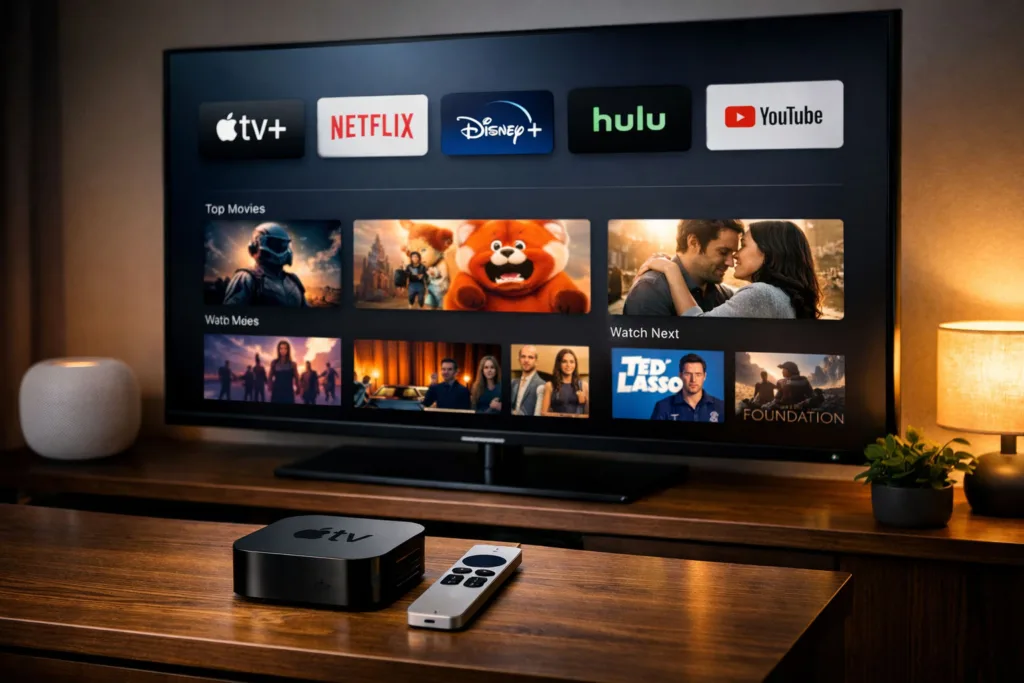
This article will guide you through maximizing your television experience using Apple TV. It will cover various functionalities, from content consumption to home integration, and offer insights into how Apple TV can serve as a central hub for your digital entertainment and smart home ecosystem.
Apple TV positions itself as a comprehensive platform for accessing a wide array of digital content. Understanding how it centralizes your entertainment can significantly streamline your viewing habits.
Managing Multiple Streaming Services
Gone are the days of individually launching apps for Netflix, Hulu, Disney+, and others. Apple TV’s integrated approach aims to simplify this process.
- The TV App: This native application acts as your central content browser. It aggregates shows and movies from most of your subscribed streaming services (with some notable exceptions like Netflix, which prefers users to access its content directly within its app).
- “Up Next” Feature: One of the TV app’s most useful functions, “Up Next” provides a personalized list of content you’re currently watching or have added to your watchlist. This allows you to pick up where you left off across different services, or queue up new content for later viewing, all from a single interface.
- Content Discovery: Beyond your subscriptions, the TV app also offers curated recommendations and trending content. This can be a useful tool for discovering new shows or movies you might not otherwise encounter.
Accessing Your Personal Media Library
Beyond commercial streaming, Apple TV provides robust support for your personal collection of movies, TV shows, and photos.
- iTunes Library Integration: If you’ve purchased or rented content through iTunes, it’s automatically accessible on your Apple TV. This provides a unified location for your owned digital media alongside your subscription services.
- Home Sharing: For content stored on a computer or network-attached storage (NAS) device, Home Sharing allows you to stream it directly to your Apple TV. This requires enabling Home Sharing on your computer (via iTunes or the Music/TV apps on macOS) and linking it to your Apple TV. This is a practical solution for viewing large media libraries without needing to upload everything to a cloud service.
- iCloud Photos: Your entire iCloud Photo Library can be viewed on your TV, turning it into a large-format digital photo frame. This is a convenient way to share family photos or relive memories with others.
Expanding Your Audio Experience
While primarily a video device, Apple TV also serves as an audio output device, offering flexibility for your sound setup.
- AirPlay 2 Integration: This allows you to stream audio from your Apple TV to compatible speakers throughout your home. This capability extends beyond just music; you can also send the audio from a movie or TV show to multiple AirPlay 2 speakers simultaneously for a surround-sound-like experience or for listening in different rooms.
- HomePod and HomePod mini Integration: For a more integrated audio solution, you can pair HomePod or HomePod mini speakers with your Apple TV. This allows them to function as your primary TV speakers, offering improved sound quality compared to most television’s built-in speakers, and providing a seamless audio experience within the Apple ecosystem.
- Bluetooth Headphones: For private listening, you can connect Bluetooth headphones directly to your Apple TV. This is particularly useful for late-night viewing without disturbing others, or for an immersive audio experience when others are present.
If you’re interested in enhancing your streaming experience with Apple TV, you might find it beneficial to explore how cloud technology can optimize data management. A related article that delves into this topic is available at Maximizing Data Warehousing Efficiency in the Cloud with Serverless Technology. This piece discusses the advantages of serverless architecture in managing large datasets, which can be particularly relevant for streaming services like Apple TV that rely on efficient data handling to deliver high-quality content.
Elevating Your Gaming and Interactive Experiences
Apple TV isn’t just for passive viewing; it offers a platform for interactive entertainment, ranging from casual games to fitness programs.
Apple Arcade and tvOS Gaming
Apple TV provides access to Apple Arcade, a subscription service offering a curated collection of ad-free and in-app-purchase-free games.
- Game Controller Support: To enhance the gaming experience, Apple TV supports a wide range of Bluetooth game controllers, including those from PlayStation and Xbox. This significantly improves gameplay compared to using the Siri Remote alone, offering more precise control and a more traditional console-like feel.
- Family-Friendly Gaming: Many Apple Arcade titles are designed with families in mind, offering engaging gameplay suitable for various age groups. This positions Apple TV as a versatile entertainment option for households with children.
- Beyond Apple Arcade: While Apple Arcade is a focal point, the tvOS App Store also offers individual game purchases, ranging from simple puzzle games to more graphically intensive titles.
Fitness and Wellness On-Screen
Apple TV extends its utility to personal health and fitness, providing a large-screen platform for workout routines and wellness programs.
- Apple Fitness+: This subscription service offers a library of studio-style workouts led by expert trainers. With Apple TV, you can view these workouts on your largest screen, making it easier to follow along with the instructors and track your metrics.
- Real-time Metrics: When paired with an Apple Watch, Apple Fitness+ displays your workout metrics (such as heart rate, calorie burn, and activity rings) directly on your TV screen in real-time. This integration provides immediate feedback and motivation during your exercise sessions.
- Third-Party Fitness Apps: Beyond Apple Fitness+, the tvOS App Store hosts a variety of other fitness applications, offering specialized workouts, yoga classes, and meditation guides. These apps leverage the large screen of your TV to deliver immersive instruction.
Smart Home Integration and Control


Apple TV can serve as a central hub for your HomeKit-enabled smart home devices, extending its utility beyond entertainment.
Functioning as a HomeKit Hub
For users engaged in the Apple smart home ecosystem, Apple TV is an integral component.
- Remote Access: When your Apple TV is set up as a HomeKit hub, it enables remote access to your smart home devices. This means you can control your lights, thermostats, locks, and other accessories from anywhere using the Home app on your iPhone or iPad, even when you’re away from home.
- Automations: The HomeKit hub functionality also allows you to create and run automated routines for your smart home. For example, you could set up an automation that turns on your lights and adjusts the thermostat when you arrive home, or one that locks your doors and turns off all lights when you leave.
- Secure Communication: Apple TV facilitates secure communication between your HomeKit devices, ensuring that your smart home data remains private and protected.
On-Screen Smart Home Control
Beyond background hub functionality, Apple TV also offers direct control interfaces for your smart home.
- Control Center Integration: You can quickly access your favorite HomeKit scenes and accessories directly from the Apple TV’s Control Center. A long press on the TV icon on the Siri Remote brings up a customizable panel where you can activate scenes or control individual devices.
- Viewing Security Camera Feeds: If you have HomeKit-compatible security cameras, you can view their live feeds directly on your television screen through your Apple TV. This is a convenient way to check on different areas of your home or property without needing to pick up another device.
- Siri Commands: Using the Siri Remote, you can issue voice commands to control your HomeKit devices. For example, “Hey Siri, turn off the living room lights” or “Hey Siri, set the thermostat to 70 degrees” allows for hands-free operation of your smart home.
Productivity and Utility on the Big Screen
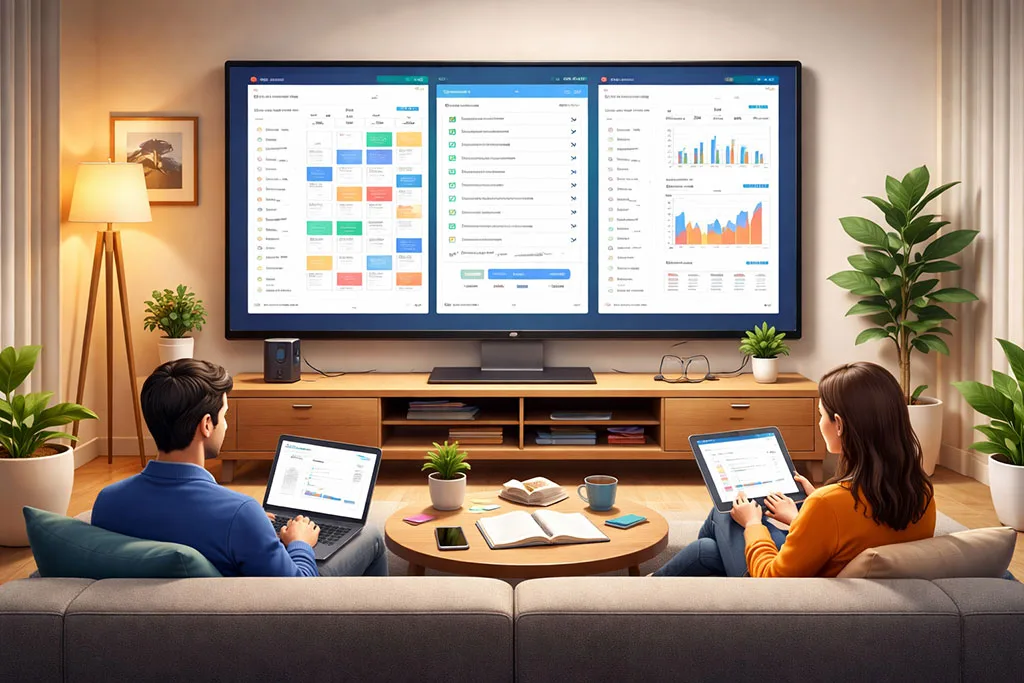
Apple TV can extend beyond entertainment and smart home control, offering capabilities that enhance productivity and utility.
Screen Mirroring and Presentation
Leveraging AirPlay, Apple TV facilitates wireless screen sharing, making it useful for both personal and professional applications.
- iPhone/iPad Screen Mirroring: You can wirelessly mirror the screen of your iPhone or iPad to your TV via Apple TV. This is ideal for sharing photos, videos, or even web pages with a group, allowing everyone to view content on a larger display without crowding around a smaller device.
- Mac Screen Mirroring: Similarly, Mac users can mirror their computer’s display to their TV. This is beneficial for presentations, collaborative work, or simply extending your desktop workspace to a bigger screen for a more expansive view of your applications.
- Group Viewing and Collaboration: Whether for watching shared content, working on a project with others, or delivering a presentation, screen mirroring transforms your TV into a collaborative display.
Web Browsing and Information Access
While not a primary web browsing device, Apple TV offers options for accessing web-based content and information.
- Dedicated Apps: While there isn’t a direct Safari browser on tvOS, many popular websites and services offer dedicated apps in the tvOS App Store. These apps are optimized for the TV interface and typically provide a more streamlined experience than attempting to browse the full web.
- Third-Party Web Viewers: Some third-party apps provide web-viewing capabilities, though they are often more limited than a full-fledged browser on a computer or mobile device. These can be useful for accessing specific web content that doesn’t have a dedicated app.
- News and Weather: Apps for news organizations and weather forecasts provide immediate access to current events and local conditions, presented in a TV-friendly format. This allows you to stay informed without needing to switch to another device.
Apple TV has become a significant player in the streaming landscape, offering a diverse range of content and features that cater to various audiences. For those interested in exploring the latest advancements in technology and how they influence entertainment platforms, a related article can be found at this link. This article delves into the innovations shaping the tech industry, providing insights that complement the evolution of services like Apple TV.
Advanced Customization and Control
| Metrics | Data |
|---|---|
| Resolution | Up to 4K HDR |
| Storage | 32GB or 64GB |
| Processor | A12 Bionic chip |
| Audio | Dolby Atmos |
| Connectivity | Wi-Fi 6, Bluetooth 5.0 |
To truly unlock the potential of your Apple TV, understanding its customization options and control features is important.
Customizing Your User Experience
Apple TV allows for personalization to tailor the interface and functionality to your preferences.
- App Organization: You can organize your apps on the home screen into folders, similar to iOS, allowing for a decluttered and logical arrangement of your most frequently used applications. This makes navigation faster and more intuitive.
- Screensavers: Beyond a static background, Apple TV offers “Aerial” screensavers, which display stunning slow-motion video footage of diverse landscapes and cityscapes from around the world. You can customize which types of Aerials are downloaded and displayed, adding an aesthetic touch when your TV is idle.
- Accessibility Features: Apple TV includes a comprehensive suite of accessibility features, such as Closed Captions, Audio Descriptions, Zoom, Reduce Motion, and VoiceOver. These options ensure that the platform is usable by a wide range of individuals with varying needs and preferences.
Mastering the Siri Remote
The Siri Remote is your primary interface with Apple TV, and understanding its capabilities enhances your control.
- Touch Surface Navigation: The remote’s touch surface allows for swipe gestures to navigate menus and scroll through content, providing a fluid and intuitive interaction. You can adjust the tracking speed of the touch surface in the settings to match your preference.
- Siri Voice Commands: The dedicated Siri button allows you to issue voice commands for nearly any action. This ranges from opening apps and searching for content (“Hey Siri, open Netflix,” “Hey Siri, find action movies”) to controlling playback (“Hey Siri, skip forward 30 seconds”) and even gathering information (“Hey Siri, what’s the weather like?”).
- Control Center Access: As previously mentioned, holding down the TV button reveals the Control Center, providing quick access to sleep mode, audio output options, and HomeKit controls. This consolidates several common functions into an easily accessible panel.
- Customizable TV Button: In settings, you can configure the TV button to either go directly to the TV App or to the home screen, depending on your preferred starting point for entertainment.
By exploring and utilizing these functionalities, you can transform your Apple TV from a simple streaming device into a multifaceted entertainment hub, a powerful smart home controller, and a versatile tool for productivity and wellness within your living space.
FAQs
What is Apple TV?
Apple TV is a digital media player and microconsole developed and sold by Apple Inc. It is a small network appliance and entertainment device that can receive digital data for visual and audio content such as music, video, video games, or the screen display of certain other devices, and play it on a connected television set or other video display.
What can you do with Apple TV?
With Apple TV, users can stream video, music, and podcasts from the internet, as well as play video games with the included remote or with an optional game controller. It also allows users to access a variety of apps and services, including streaming platforms like Netflix, Hulu, and Disney+, and to mirror the screen of their iOS or macOS device.
How does Apple TV work?
Apple TV connects to a television set or other display via an HDMI cable and uses its Wi-Fi or Ethernet capabilities to access the internet and stream content. It can be controlled using the included remote, an iOS device, or an optional game controller.
What are the different models of Apple TV?
As of 2021, there are two main models of Apple TV: the Apple TV HD and the Apple TV 4K. The Apple TV HD supports up to 1080p video resolution, while the Apple TV 4K supports up to 2160p (4K) resolution. Both models run on tvOS, Apple’s operating system for the device.
Is Apple TV a subscription service?
Apple TV is not just a device, but also a subscription service. Apple TV+ is a streaming service that offers original movies and TV shows, including content produced by Apple. It is available on the Apple TV app, which is accessible on Apple devices, select smart TVs, and streaming devices.