


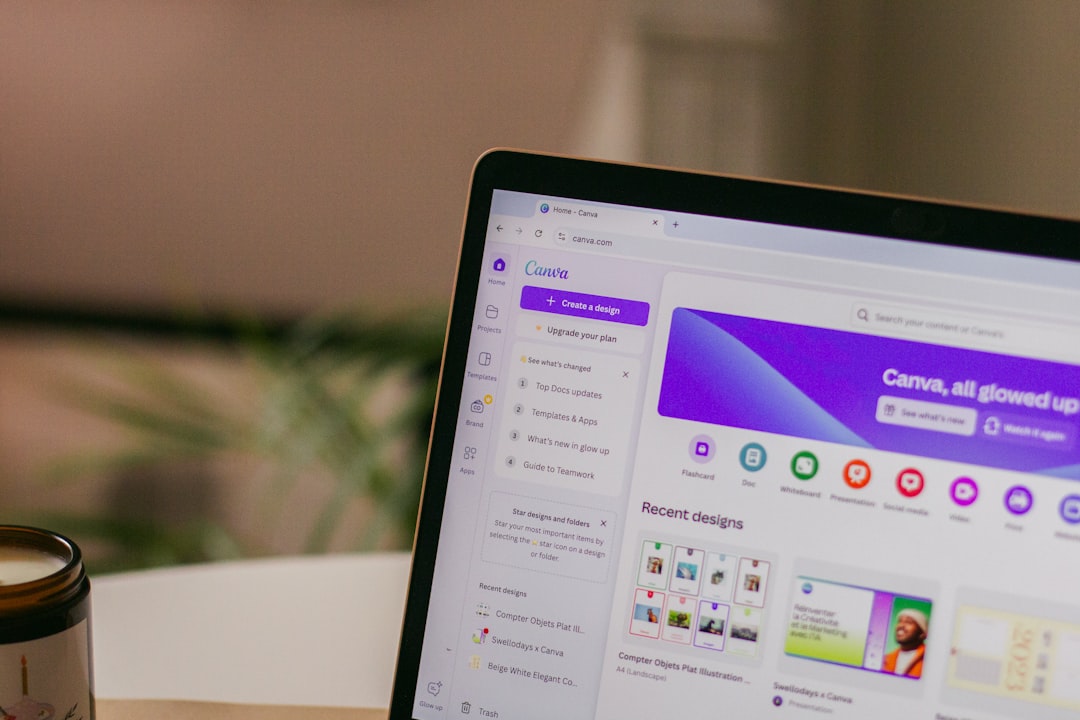
Canva is a web-based graphic design platform launched in 2013 that enables users to create visual content through a simplified interface. The platform serves individuals and businesses seeking to produce graphics for social media, presentations, and marketing materials without requiring extensive design experience. The platform operates on a drag-and-drop system and provides access to a library of templates, images, fonts, and design elements.
Users can select from pre-designed templates or create custom designs from blank canvases. Canva offers both free and paid subscription tiers, with premium features including additional templates, stock photos, and advanced editing tools. Canva’s user base includes entrepreneurs, educators, marketers, and content creators who need to produce visual materials efficiently.
The platform supports various output formats and design types, including social media graphics, posters, brochures, logos, and presentations. This article examines Canva’s features and functionality to help users understand the platform’s capabilities and applications.
Key Takeaways
- Canva is a user-friendly design platform suitable for beginners and professionals alike.
- It offers a variety of design tools that simplify creating visually appealing content.
- Ready-made templates help users quickly start projects and maintain design consistency.
- Customization options allow for personalized and unique design creations.
- Collaboration features enable easy sharing and teamwork on design projects.
Understanding the Basics of Canva
To get started with Canva, you first need to familiarize yourself with its basic features and layout. When you log in to your Canva account, you are greeted by a clean and organized dashboard that showcases your recent designs and offers a variety of templates to choose from. The search bar at the top allows you to quickly find specific design types or elements, making navigation seamless.
You will notice that Canva categorizes its offerings into different sections, such as social media graphics, presentations, posters, and more, which can help you pinpoint exactly what you need for your project. Once you select a template or start from scratch, you will find yourself in the design editor. This is where the magic happens.
On the left side of the screen, you will see a panel filled with options for adding text, images, elements, and backgrounds. The right side displays your canvas, where you can see your design come to life in real-time. Understanding this layout is crucial as it allows you to efficiently utilize the tools at your disposal.
As you explore further, you’ll discover that Canva also offers features like resizing your designs for different platforms and saving your work in various formats.
Exploring Canva’s Design Tools
Canva is equipped with a diverse array of design tools that cater to all your creative needs. One of the standout features is the extensive library of images and graphics available at your fingertips. You can access millions of free and premium stock photos, illustrations, and icons that can elevate your designs significantly.
By simply searching for keywords related to your project, you can find visuals that resonate with your theme and message. This vast collection ensures that you never run out of inspiration or resources while designing. In addition to images, Canva provides a variety of text options that allow you to customize typography effortlessly.
You can choose from hundreds of fonts and adjust their size, color, spacing, and alignment to create a cohesive look for your design.The text effects feature adds another layer of creativity; you can apply shadows, outlines, or even curve your text to make it stand out. Furthermore, Canva’s color palette tool enables you to experiment with different color combinations, ensuring that your designs are visually appealing and aligned with your brand identity.
Utilizing Canva’s Templates
One of the most significant advantages of using Canva is its vast selection of templates designed for various purposes. Whether you’re creating an Instagram post, a business card, or an infographic, there’s likely a template that fits your needs perfectly. These templates are crafted by professional designers and are fully customizable, allowing you to maintain a unique touch while benefiting from expert design principles.
By starting with a template, you can save time and effort while still producing high-quality work. When selecting a template, consider the overall aesthetic and how it aligns with your message. You can easily modify any aspect of the template—colors, fonts, images—to match your vision.
This flexibility means that even if you start with a pre-designed layout, the final product can be entirely yours. Additionally, Canva frequently updates its template library with new designs based on current trends and seasonal themes, ensuring that you always have fresh options to choose from.
Customizing Your Designs with Canva
| Metric | Value | Details |
|---|---|---|
| Incident Date | 2024-04-15 | Date when Canva experienced downtime |
| Duration | 2 hours | Time period Canva was inaccessible |
| Number of Users Affected | 500,000+ | Estimated users impacted globally |
| Reported Issues | Login failures, slow loading | Common problems reported by users |
| Root Cause | Server overload | Primary reason for the downtime |
| Resolution Time | 2 hours | Time taken to restore full service |
| Customer Support Response | Within 30 minutes | Average time to respond to user complaints |
| Service Status Post-Incident | Stable | Current status after resolution |
Customization is at the heart of what makes Canva such a powerful tool for creators like you. While templates provide a solid foundation for your designs, personalizing them is what truly makes them stand out. You can upload your own images or logos to incorporate into your projects, giving them a unique flair that reflects your brand or personal style.
This feature is particularly useful for businesses looking to maintain brand consistency across their marketing materials. Beyond images, Canva allows for extensive customization of elements within your design. You can adjust shapes and icons by changing their colors or sizes and even layering them for added depth.
The ability to group elements together makes it easy to move multiple items at once without disrupting your layout.
Additionally, Canva’s grid and alignment tools help ensure that everything is perfectly positioned on the canvas.
This level of customization empowers you to create designs that are not only visually appealing but also tailored specifically to your audience.
Collaborating and Sharing with Canva
In today’s collaborative work environment, being able to share and work on designs with others is essential. Canva recognizes this need by offering robust collaboration features that allow multiple users to work on a project simultaneously. You can invite team members or clients to view or edit your designs by simply sharing a link or sending an invitation through email.
This real-time collaboration fosters creativity and ensures that everyone involved can contribute their ideas seamlessly. Once your design is complete, sharing it with the world is just as easy. Canva provides various options for exporting your work; you can download it in multiple formats such as PNG, JPG, PDF, or even GIFs for animated designs.
Additionally, if you’re looking to share directly on social media platforms or via email, Canva allows for one-click sharing options that streamline the process. This ease of sharing not only enhances productivity but also helps you reach your audience more effectively.
Tips and Tricks for Creativity with Canva
To truly harness the power of Canva and elevate your designs, consider implementing some creative tips and tricks into your workflow. First and foremost, don’t hesitate to experiment with different styles and layouts. The beauty of Canva lies in its flexibility; if something doesn’t work out as planned, you can easily revert changes or try out new ideas without any hassle.
Embrace the trial-and-error process as it often leads to unexpected yet delightful results. Another useful tip is to take advantage of Canva’s learning resources. The platform offers tutorials and design courses that can help sharpen your skills and inspire new ideas.
Engaging with these resources not only enhances your understanding of design principles but also keeps you updated on new features within the platform. Additionally, following design trends through blogs or social media can provide fresh inspiration for your projects—allowing you to stay ahead in the ever-evolving world of graphic design.
Embracing Creativity with Canva
As you navigate through the world of graphic design using Canva, remember that creativity knows no bounds. This platform empowers you to express yourself visually while providing all the necessary tools to make that expression impactful and professional. Whether you’re designing for personal projects or professional endeavors, embracing the capabilities of Canva will undoubtedly enhance your creative journey.
In conclusion, Canva is more than just a design tool; it is a gateway to unleashing your creativity and bringing your ideas to life. By understanding its features—from templates and customization options to collaboration tools—you can create stunning visuals that resonate with your audience. So dive in, explore all that Canva has to offer, and let your imagination run wild as you craft beautiful designs that tell your story!
Canva has revolutionized the way individuals and businesses approach design, making it accessible to everyone, regardless of their skill level. For those interested in the intersection of technology and productivity, a related article that explores the concept of efficiency in a different light is “The Rise of Slow Productivity: Why Doing Less is the Key to Achieving More in 2025.” You can read it [here](https://www.wasifahmad.com/the-rise-of-slow-productivity-why-doing-less-is-the-key-to-achieving-more-in-2025/). This article delves into how a more measured approach to work can lead to greater creativity and output, complementing the ease of use that tools like Canva provide.
FAQs
What does “Canva down” mean?
“Canva down” refers to a situation where the Canva website or app is temporarily unavailable or not functioning properly due to technical issues, server problems, or maintenance.
How can I check if Canva is down?
You can check if Canva is down by visiting status monitoring websites like DownDetector, checking Canva’s official social media accounts, or visiting Canva’s status page if available.
What should I do if Canva is down?
If Canva is down, you can wait for the service to be restored, try refreshing the page, clear your browser cache, or check for updates from Canva’s official channels for estimated resolution times.
Can I still access my Canva designs if the platform is down?
If Canva’s servers are down, you typically cannot access your designs online. However, if you have previously downloaded your designs or saved them offline, you can still access those files.
Does Canva notify users when there is downtime?
Canva may notify users about planned maintenance or significant outages through email, their website, or social media channels, but unplanned outages might only be communicated after the issue is identified.
Is Canva down frequently?
Canva generally maintains high uptime, but like any online service, it can experience occasional outages due to technical issues or maintenance.
Can I use Canva offline?
Canva primarily operates as an online platform, so most features require an internet connection. Some mobile app features may work offline, but full functionality is limited without internet access.
Who can I contact if Canva is down and I need urgent support?
You can contact Canva’s customer support through their help center or official support channels for assistance during outages or technical problems.
