


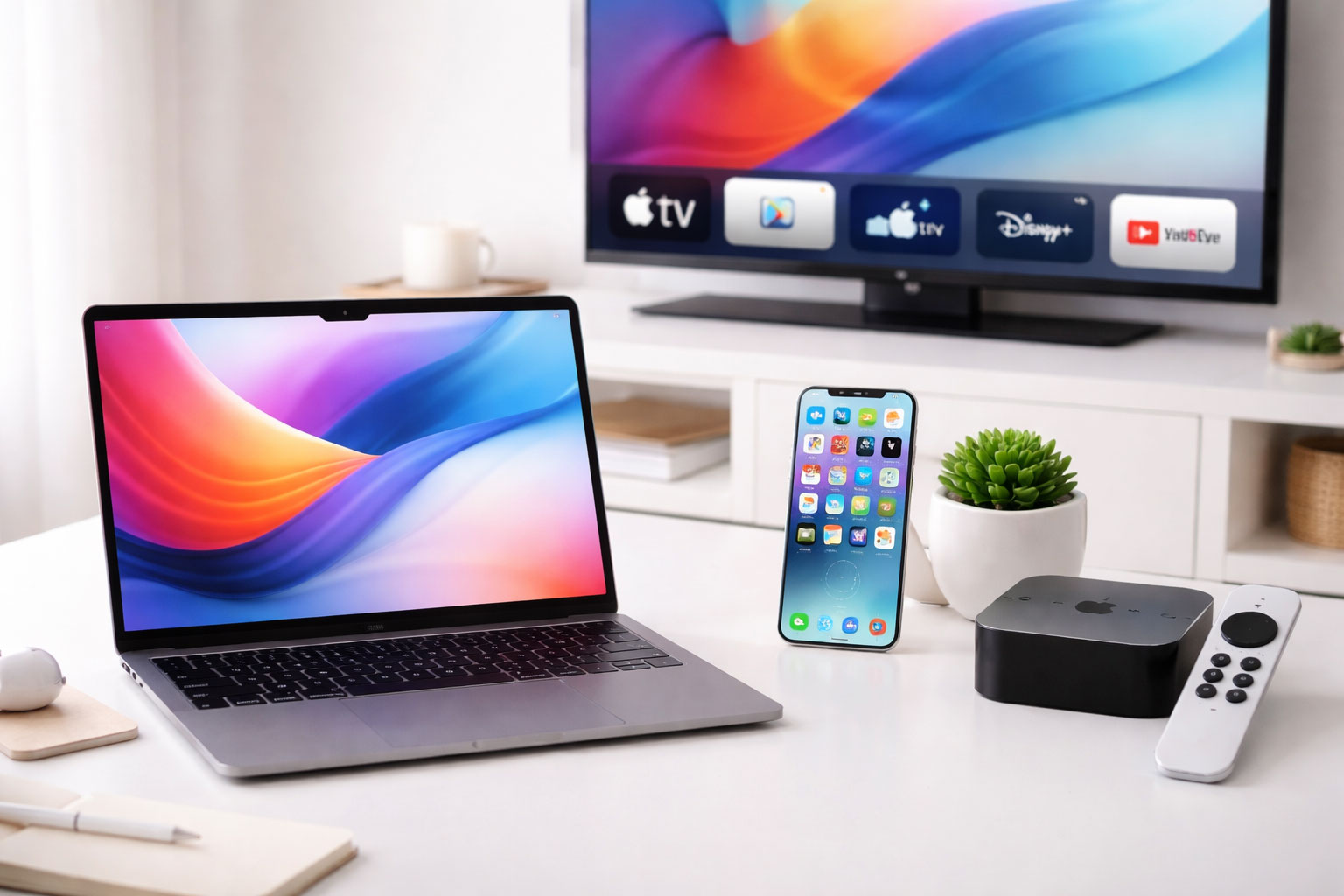
You’re likely reading this because you own, or are considering owning, a suite of Apple devices: a MacBook, an iPhone, and perhaps an Apple TV. The allure of the Apple ecosystem is undeniable, promising a seamless integration between your computing, communication, and entertainment needs. But simply owning these devices is one thing; truly mastering them is another. This guide aims to demystify the process, moving beyond basic functionality to unlock the full potential of your Apple laptop, mobile device, and TV.
Your MacBook is the cornerstone of your Apple experience, a powerful and versatile machine capable of a wide range of tasks. While you might be comfortable with everyday computing, there’s a depth to macOS that often goes unexplored. Understanding these nuances can significantly improve your productivity and enjoyment.
Navigating the macOS Interface
The familiar desktop, dock, and menu bar are your primary points of interaction. However, delving deeper reveals powerful organizational and navigation tools.
Mastering Spotlight Search
Spotlight is more than just a simple search bar; it’s a powerful utility that can launch applications, find files, perform quick calculations, convert units, and even look up definitions.
Effective Spotlight Usage
- Keyboard Shortcuts: Learn the Command + Spacebar shortcut to summon Spotlight instantly.
- File Searching: Beyond file names, Spotlight can search within document content. Type keywords from a document you’re looking for, and Spotlight will often pinpoint it.
- Calculations and Conversions: Need to convert kilometers to miles or calculate 15% of $250? Type the calculation directly into Spotlight.
- App Launching: Instead of scrolling through your applications folder or launchpad, simply type the first few letters of the app you want to open.
- System Preferences: You can often directly access system settings by typing their names into Spotlight.
Utilizing macOS Gestures
Trackpad gestures provide a fluid and intuitive way to interact with your MacBook. Mastering these can dramatically speed up your workflow.
Common and Advanced Gestures
- Two-finger scroll: Glide two fingers up or down to scroll pages.
- Pinch to zoom: Spread two fingers apart to zoom in, pinch to zoom out.
- Swipe between pages/full-screen apps: Swipe left or right with three or four fingers to navigate between full-screen applications or browser pages.
- Mission Control: Swipe up with three or four fingers to see all open windows and active spaces.
- App Expose: Swipe down with three or four fingers to see all open windows of the currently active application.
- Launchpad: Spread your thumb and three fingers apart on the trackpad to show all your installed applications.
Optimizing File Management
Efficiently organizing your files is crucial for productivity. macOS offers robust tools for this, both within the Finder and system-wide.
Finder and Beyond
- Smart Folders: These are saved searches that dynamically update. For example, create a Smart Folder for all documents modified in the last week or all images larger than 5MB.
- Tags: Assign colored tags to files and folders. You can then use Spotlight or the Finder sidebar to filter by these tags, creating a flexible organizational system.
- Quick Look: Select a file and press the Spacebar to get an instant preview without opening the application. This is incredibly useful for images, documents, and even videos.
- Column View in Finder: For navigating complex folder structures, Column View provides a hierarchical overview, allowing you to see your location and easily move up and down the directory.
Harnessing Mac Application Power
macOS comes with a suite of powerful built-in applications. Understanding their advanced features can reduce your reliance on third-party software.
Deep Dive into Pages, Numbers, and Keynote
These iWork applications are surprisingly capable and offer robust features for document creation, data analysis, and presentations.
Advanced Features
- Templates and Themes: Utilize the extensive template libraries for professional-looking documents, spreadsheets, and presentations from the outset.
- Collaboration: Share documents and collaborate in real-time with other users. Track changes and leave comments.
- Export Options: Export your work to various formats, including Microsoft Office formats (Word, Excel, PowerPoint), PDF, and ePub.
- Interoperability: While they have their own formats, seamless conversion to and from Microsoft Office formats ensures compatibility with other users.
- Dynamic Elements in Keynote: Explore advanced animation and transition options, including object animation, builds, and camera effects, to create truly engaging presentations.
Mastering Mail and Calendar
These are not just basic communication tools; they are sophisticated organizers designed to streamline your daily schedule.
Productivity Enhancements
- Smarter Mail Filtering: Set up rules in Mail to automatically sort incoming messages, flag important emails, or move them to specific mailboxes.
- Snooze and Remind: Use the snooze function to defer emails until a more convenient time, and set reminders for important messages.
- Rich Text Formatting: Utilize formatting options to create clear and well-structured emails.
- Calendar Sharing and Integration: Share your calendars with colleagues or family members and integrate them with other online services.
- Event Creation and Management: Leverage features like travel time calculations and location-based reminders for events.
Understanding System Settings and Security
Your MacBook’s settings control its performance, appearance, and security. Taking the time to understand these options is essential for a personalized and secure experience.
Privacy and Security Settings
These are paramount in protecting your data and digital identity.
Key Security Measures
- FileVault Encryption: Encrypt your entire hard drive to protect your data if your MacBook is lost or stolen.
- Gatekeeper: macOS Gatekeeper helps prevent you from installing malicious software by verifying that apps come from trusted developers.
- App Permissions: Review and manage the permissions granted to each application, controlling access to your location, contacts, microphone, camera, and more.
- Firewall: Enable the built-in firewall to control incoming network connections.
- Two-Factor Authentication: For your Apple ID, ensure two-factor authentication is enabled to add an extra layer of security.
Customizing Your macOS Experience
Personalization can significantly enhance your comfort and efficiency.
Interface and Workflow Tweaks
- Desktop and Screen Saver: Beyond aesthetics, consider using dynamic desktops that change throughout the day.
- Dock and Menu Bar Customization: Adjust the size, position, and contents of your Dock and Menu Bar for quick access to your most-used apps and functions.
- Keyboard Shortcuts: Create custom keyboard shortcuts for frequently used tasks or applications.
- Hot Corners: Assign actions to the corners of your screen that trigger when you move your mouse pointer there – helpful for quickly accessing Mission Control or the Desktop.
For those interested in exploring the latest advancements in Apple products such as laptops, mobile devices, and TVs, a related article can provide valuable insights. You can read more about the comparisons and features of these devices in the article found at this link.
Elevating Your iPhone Usage: Beyond the Smartphone
Your iPhone is your constant companion, a powerful pocket computer that handles communication, information, and entertainment on the go. Going beyond basic calls and texts unlocks its true potential as a productivity and creativity hub.
Harnessing the Power of iOS Features
iOS is a sophisticated operating system with a wealth of features designed to simplify your life and enhance your interactions.
Mastering the iPhone Home Screen
While often an afterthought, a well-organized Home Screen can significantly improve your navigation speed and reduce cognitive load.
Strategic Home Screen Organization
- Folders: Group similar apps into folders to declutter your Home Screen. Name folders clearly to make them easily scannable.
- Widgets: Utilize widgets for quick access to information from your favorite apps without needing to open them. Arrange them logically on your Home Screen or Today View.
- App Library: Understand how the App Library automatically categorizes your apps, allowing you to quickly find any app without it cluttering your Home Screen.
- App Icon Placement: Place your most frequently used apps in the Dock or on the first Home Screen page for immediate access.
Exploring Control Center and Notification Center
These two areas are vital for quick access to settings and managing incoming alerts.
Efficient Use of Control Center and Notifications
- Customizing Control Center: Add or remove toggles for quick access to Airplane Mode, Wi-Fi, Bluetooth, brightness, volume, flashlight, timer, camera, and more.
- Long-Press for More Options: Many Control Center toggles offer additional options when long-pressed (e.g., long-pressing Wi-Fi brings up network selection).
- Notification Grouping: iOS automatically groups notifications by app, making them easier to manage.
- Scheduled Summary: For less important notifications, opt for a scheduled summary to receive them in one go at a set time, reducing interruptions throughout the day.
- Focus Modes: Set up custom Focus modes (e.g., Work, Personal, Sleep) to silence specific notifications and apps during certain times or activities.
Deepening Your Understanding of iPhone Apps
Beyond the pre-installed apps, the App Store offers an almost limitless array of tools. However, even the built-in apps have hidden depths.
Advanced Safari Features
Safari is your gateway to the web, and its features extend beyond simple browsing.
Becoming a Power Web User
- Tab Management: Utilize tab groups to organize your browsing sessions and easily switch between them.
- Reader Mode: For articles, engage Reader Mode to remove ads and distractions, providing a clean reading experience.
- Password Management: Let Safari securely store your passwords and auto-fill them.
- Website Settings: Customize website-specific settings like zoom levels and content blockers.
- Private Browsing: Understand when and how to use private browsing for enhanced privacy.
Mastering the Camera and Photos App
Your iPhone’s camera is remarkably capable. Learning its modes and post-processing tools can elevate your photography.
Photographic Prowess
- Camera Modes: Explore Portrait Mode for professional-looking depth-of-field effects, Night Mode for low-light shots, and Cinematic Mode for video with shallow depth of field.
- Live Photos: Understand how to capture and edit Live Photos to add a dynamic element to your images.
- Photo Editing Tools: Utilize the built-in editing tools for adjusting exposure, contrast, color, cropping, and applying filters.
- Albums and Smart Albums: Organize your photos efficiently using albums and leverage smart albums to automatically group photos based on criteria like date, location, or people.
- Duplicate Detection: iOS now identifies duplicate photos, helping you free up storage space.
Optimizing Communication with Messages and Phone
These are fundamental, but their advanced features can streamline your communication.
Streamlined Communication
- iMessage Features: Explore features like message effects, memoji, group chats with mentions, and the ability to edit or unsend messages.
- Pinned Conversations: Pin your most important conversations to the top of your Messages list.
- Spam Filtering: Enable spam filtering for incoming calls and messages.
- Voicemail Transcription: For supported languages, your voicemail can be transcribed, allowing you to read messages instead of listening.
- Communication Safety: Familiarize yourself with features like Communication Safety to protect children from potentially harmful content.
Integrating iPhone with Other Apple Devices
The true power of the iPhone lies in its seamless integration with your other Apple products.
Seamless Hand-off and Continuity
These features allow you to start a task on one device and finish it on another.
Effortless Device Switching
- Handoff: Begin an email, document, or web page on your iPhone and seamlessly pick up where you left off on your MacBook, and vice versa.
- Universal Clipboard: Copy text, images, or files on one Apple device and paste them onto another.
- Continuity Camera: Use your iPhone to scan documents or take an image directly into an app on your Mac.
- Continuity Sketch: Draw on your iPhone and insert it into a document on your Mac.
Leveraging iCloud for Synchronization and Backup
iCloud is the backbone of Apple’s ecosystem, keeping your data consistent across all your devices.
Maximizing iCloud Utility
- iCloud Photos: Automatically back up and sync your entire photo library across all your devices, accessible from any of them.
- iCloud Drive: Store and access documents, presentations, and other files from any device.
- iCloud Backups: Ensure your iPhone is regularly backed up to iCloud, making it easy to restore your data to a new device.
- iCloud Keychain: Securely store and auto-fill passwords and credit card information across your devices.
- Find My: Locate lost or stolen Apple devices, play a sound, or remotely erase them.
Mastering Your Apple TV: Beyond Streaming

Your Apple TV is more than just a device to watch Netflix. It’s a gateway to a curated entertainment and gaming experience, and a hub for your smart home.
Navigating the tvOS Interface
tvOS, the operating system for Apple TV, is designed for a relaxed, couch-based experience. Understanding its navigation and features is key.
Understanding the App Store on Apple TV
The App Store on Apple TV is where you find all your entertainment, including streaming services, games, and utility apps.
Curating Your Entertainment
- App Discovery: Explore curated lists, genres, and search functions to find new apps and services.
- App Organization: Arrange your purchased apps on the Home Screen, similar to your iPhone or iPad, for quick access. Use folders to keep things tidy.
- Purchased Apps: Easily re-download apps you’ve previously purchased without needing to buy them again.
Utilizing the Siri Remote
The Siri Remote is your primary interaction tool. Mastering its gestures and voice commands is essential.
Efficient Remote Control Usage
- Touch Surface Gestures: Use the touch surface for swiping left, right, up, and down to navigate menus, and tap to select.
- Siri Commands: Press the Siri button and speak your commands for searching content, controlling playback, or even performing system functions.
- Playback Controls: Understand the dedicated playback buttons for play, pause, rewind, and fast-forward.
- Back Button: The back button is crucial for navigating out of menus and returning to previous screens.
Unlocking Advanced Apple TV Capabilities
Beyond the most popular streaming apps, Apple TV offers a range of functionalities.
Embracing Apple Arcade and Gaming
Apple Arcade offers a curated selection of high-quality games with no ads or in-app purchases.
Gaming on the Big Screen
- Game Discovery: Browse the Arcade library and discover new titles across various genres.
- Controller Support: While many games can be played with the Siri Remote, many are optimized for MFi (Made for iPhone) game controllers, significantly enhancing the gaming experience.
- Family Sharing: If you use Family Sharing, all your family members can access Apple Arcade games on their own devices.
Integrating Apple Fitness+ and Fitness Tracking
Apple Fitness+ brings studio-style workouts to your living room, integrating with your Apple Watch.
Workout Anywhere
- Workout Variety: Explore a vast library of workouts across different disciplines like HIIT, yoga, strength training, cycling, and treadmill.
- Activity Rings: See your Apple Watch activity rings displayed on screen during workouts, encouraging you to close them.
- Trainer Cues: Follow along with world-class trainers who provide clear instructions and motivation.
- Music Integration: Enjoy curated music playlists or select your own music for your workouts.
Sharing Content with AirPlay
AirPlay allows you to wirelessly stream content from your iPhone, iPad, or Mac to your Apple TV.
Effortless Content Sharing
- Mirroring Your Screen: Mirror your entire device’s screen to the Apple TV to share photos, presentations, or even websites.
- Streaming Media: Directly stream videos, music, and photos from compatible apps to your Apple TV.
- Multi-room Audio: If you have multiple AirPlay 2-enabled speakers or Apple TVs, you can play audio in sync across multiple rooms.
Exploring Smart Home Integration with Apple TV
Apple TV can act as a home hub, enhancing your smart home control with HomeKit.
Leveraging HomeKit and Home App
If you have HomeKit-compatible smart home devices, your Apple TV can serve as a central controller.
The Smart Home Hub
- Remote Access: Control your HomeKit devices from anywhere in the world when your Apple TV is set up as a home hub.
- Automations: Create automations for your smart devices – for example, have your lights turn on when you arrive home or your blinds close at sunset.
- Siri Control: Use Siri voice commands through your Apple TV or iPhone to control your HomeKit devices.
- Scenes: Set up “scenes” that control multiple devices with a single command, such as a “Goodnight” scene that turns off lights and locks doors.
Interconnecting Your Apple Ecosystem: The Synergy Effect
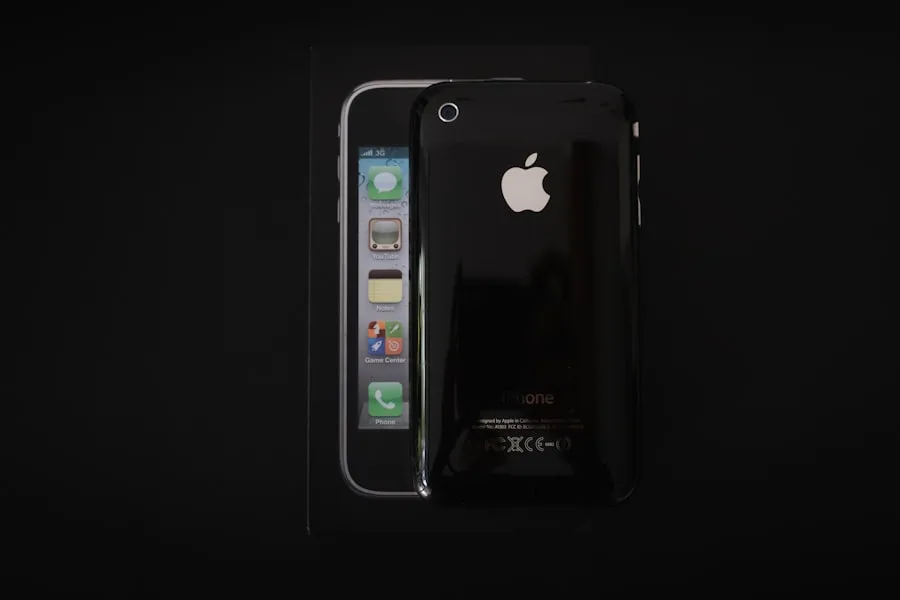
The true power of owning multiple Apple devices lies in their ability to work together. Mastering these integrations elevates your entire user experience dramatically.
The Power of Shared Accounts and Services
Your Apple ID is the key to unlocking a unified experience across all your devices.
Maximizing Your Apple ID Benefits
- App Store Purchases: Purchase an app once and access it on all your Apple devices.
- iCloud Services: As mentioned, iCloud keeps your data synced. Ensure you’re utilizing its full potential for photos, documents, contacts, and more.
- Apple Music and Apple TV+: Your subscriptions are tied to your Apple ID, providing access to a vast library of content across all your devices.
- Family Sharing: If you have a family, set up Family Sharing to share app purchases, Apple Music, Apple TV+, and iCloud storage with up to six people.
Streamlining Device Management and Updates
Keeping your devices up-to-date and managed efficiently is crucial for security and performance.
Keeping Your Devices Current
- Automatic Updates: Enable automatic updates for apps and operating systems to ensure you always have the latest features and security patches.
- Software Update Notifications: Pay attention to notifications for major operating system updates (macOS, iOS, tvOS), as they often bring significant improvements.
- Device Backups: Regularly back up your iPhone and iPad to iCloud or your Mac to prevent data loss.
Advanced Cross-Device Workflows
By understanding how your devices can interact, you can create powerful workflows that save time and effort.
Beyond Basic Handoff
- Text Message Forwarding: Receive and send SMS/MMS messages from your Mac or iPad.
- Phone Calls on Other Devices: Make and receive phone calls on your iPad or Mac when your iPhone is nearby or connected to the same Wi-Fi network.
- Using Your iPhone as a Webcam: With Continuity Camera, your iPhone can act as a high-quality webcam for your Mac.
- Digital Car Keys: If your car supports it, you can use your iPhone to unlock and start your car.
Apple products such as laptops, mobile devices, and TVs have become integral to our daily lives, enhancing productivity and entertainment. For those interested in exploring how technology influences our work habits, a related article discusses the concept of slow productivity and its impact on achieving more with less effort. You can read more about this intriguing perspective on productivity in the article here.
Continuous Learning and Adaptation
| Product | Units Sold | Market Share |
|---|---|---|
| Laptop | 5 million | 15% |
| Mobile | 50 million | 20% |
| TV | 2 million | 10% |
The Apple ecosystem is constantly evolving. New features are introduced with software updates, and new devices are released regularly.
Staying Informed About Updates
- Apple’s Official Channels: Follow Apple’s newsroom and support pages for announcements about new features and software updates.
- Tech Publications and Blogs: Reputable tech websites and blogs often provide in-depth reviews and guides for new Apple products and software.
- In-App Tutorials and Help: Many Apple applications have built-in tutorials or help sections that can guide you through advanced features.
Experimentation and Exploration
The best way to truly master your Apple devices is to experiment. Don’t be afraid to delve into settings, try new features, and see what works best for your personal workflow and needs.
Embracing the Learning Curve
- Don’t Be Afraid to Click: Explore the menus, settings, and options. Most changes can be easily reverted if you’re not satisfied.
- Search for Solutions: If you encounter a problem or are unsure how to do something, a quick web search will often provide solutions or tutorials.
- Focus on Your Needs: Identify the tasks you perform most often and prioritize learning the features that will make those tasks more efficient.
By investing time into understanding and utilizing the advanced features of your MacBook, iPhone, and Apple TV, you can transform them from mere devices into powerful tools that enhance your productivity, creativity, and entertainment. The synergy between these products is where the Apple experience truly shines, and with a little dedicated effort, you can master it.
FAQs
1. What are the different types of Apple products available?
Apple offers a range of products including laptops (MacBook Air and MacBook Pro), mobile devices (iPhone and iPad), and TV (Apple TV).
2. What are the key features of Apple laptops?
Apple laptops are known for their sleek design, high-resolution Retina displays, powerful performance, and long battery life. They also come with the macOS operating system and a variety of built-in apps.
3. What are the main features of Apple mobile devices?
Apple mobile devices, such as the iPhone and iPad, are known for their user-friendly interface, high-quality cameras, App Store with a wide range of apps, and seamless integration with other Apple products through iCloud.
4. What are the features of Apple TV?
Apple TV is a digital media player and microconsole that allows users to stream video content from various sources, including popular streaming services, and access apps and games from the App Store. It also supports 4K HDR and Dolby Atmos for an immersive viewing experience.
5. How does Apple ensure the security of its products?
Apple products are known for their strong security features, including Face ID and Touch ID for biometric authentication, end-to-end encryption for messaging and data storage, and regular software updates to address security vulnerabilities. Additionally, Apple has a dedicated team focused on privacy and security to ensure the protection of user data.
