


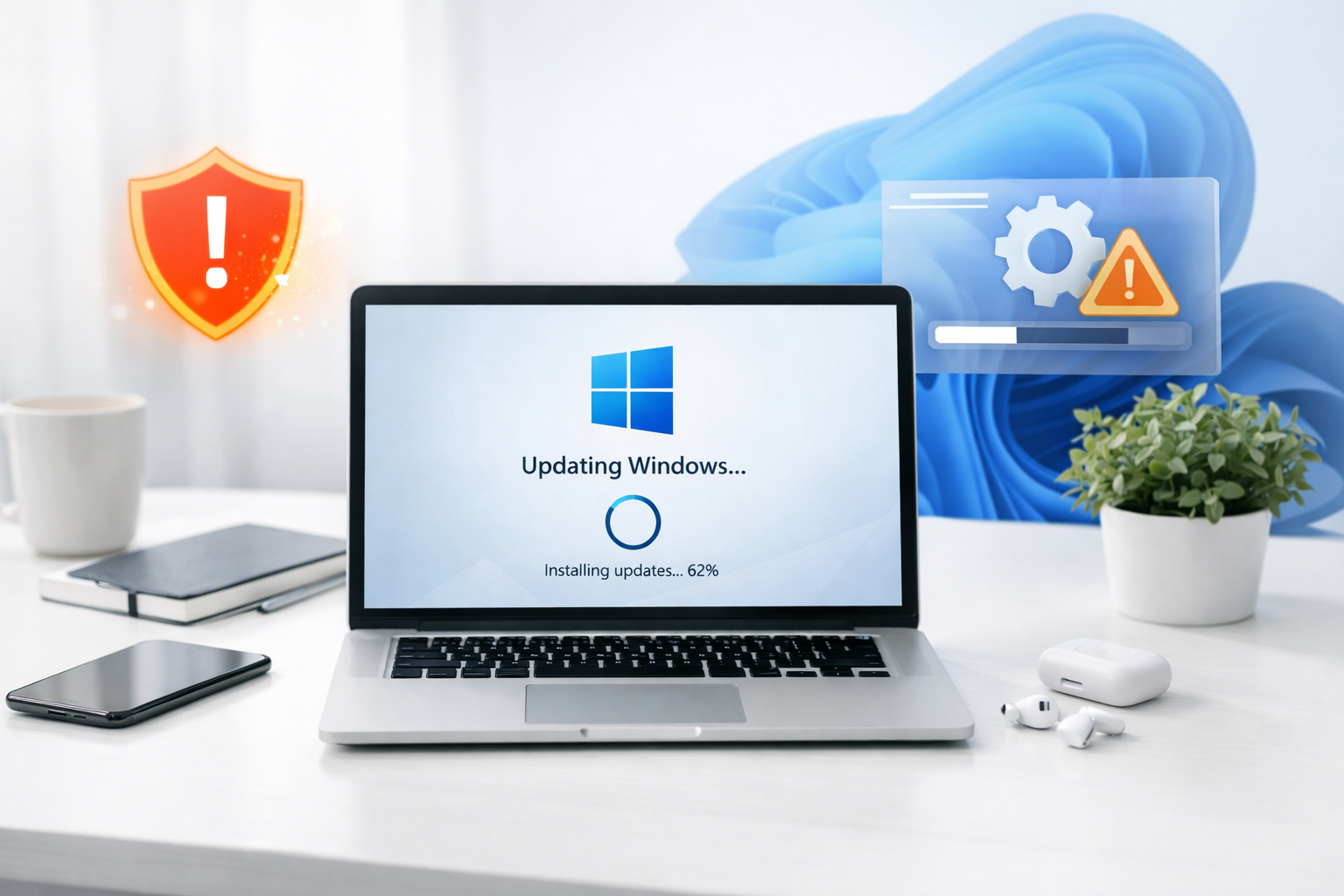
You’ve likely grown accustomed to the routine: Microsoft releases an update, you install it, and life continues. However, every so often, an update deviates from the predictable schedule, carrying a certain urgency. Such is the case with the recent emergency Windows 11 update. This isn’t your typical Patch Tuesday deployment; it addresses critical vulnerabilities that warrant immediate attention from every Windows 11 user. You need to understand the implications of this release and what it means for your system’s security and stability.
When Microsoft decides to push an update outside of its regular release cycle, it’s a clear signal that something significant has transpired. You should recognize that these aren’t minor bug fixes. Emergency updates are reserved for issues that pose genuine threats to your system’s integrity, data security, or overall functionality.
Identifying Critical Vulnerabilities
You might wonder what constitutes a “critical” vulnerability. Typically, these are flaws that attackers can exploit to gain unauthorized access to your system, steal sensitive information, or even deploy malicious software like ransomware.
- Remote Code Execution (RCE) Flaws: Imagine a scenario where an attacker can run commands on your computer without your permission, simply by you visiting a compromised website or opening a malicious file. RCE vulnerabilities are among the most severe, and their discovery often triggers emergency patches. You are directly exposed with these kinds of exploits.
- Privilege Escalation Exploits: These vulnerabilities allow an attacker, who may have initially gained limited access to your system, to elevate their privileges to administrator level. Once they have administrative rights, they can do almost anything on your computer, including installing software, changing settings, and accessing all your files. Your administrative controls are effectively bypassed.
- Zero-Day Exploits in the Wild: Sometimes, even before Microsoft is aware of a vulnerability, attackers discover and begin to actively exploit it. These are known as “zero-day” exploits. When Microsoft identifies that such an exploit is being used, an emergency update becomes paramount to protect users who are already at risk. You are a potential target in these situations.
The Dynamics of Patch Tuesday vs. Out-of-Band Releases
You’re familiar with Patch Tuesday, the second Tuesday of every month when Microsoft typically rolls out its cumulative updates. This structured approach allows for thorough testing and deployment planning.
- Scheduled Predictability: Patch Tuesday offers you a predictable timetable for updates, enabling IT departments to plan their deployment strategies and end-users to anticipate system restarts. You know when to expect these routine maintenance cycles.
- Emergency Necessity: Out-of-band updates, conversely, disrupt this predictability. They signify that the risk outweighs the inconvenience of an unscheduled patch. You shouldn’t delay installing these.
- Security vs. Convenience Trade-off: While a sudden update can be disruptive, especially if it requires a restart during critical work, the trade-off is often between a minor interruption and a potentially catastrophic security breach. You should prioritize security in these scenarios.
In light of the recent Microsoft Windows 11 emergency update, it’s essential to stay informed about the latest technological advancements that can impact various industries. For instance, the article on green steel and cleaner jet fuel discusses the innovative technologies driving industrial decarbonization, which can be crucial for businesses looking to enhance their sustainability efforts. You can read more about these transformative technologies in the article here: Green Steel and Cleaner Jet Fuel: The Technologies Powering Industrial Decarbonization.
What This Emergency Update Aims to Address
The specific details surrounding emergency updates are often communicated with a blend of transparency and discretion. While Microsoft typically provides information about the affected components, the full technical specifics of the vulnerabilities may be withheld for a period to prevent further exploitation by malicious actors.
Key Components Targeted
You will find that emergency updates frequently focus on core system components, rather than peripheral applications. This is because vulnerabilities in fundamental parts of the operating system can have a much broader impact.
- Operating System Kernel: The kernel is the heart of Windows, managing all other processes and hardware. Flaws here can lead to system instability, crashes, and serious security risks. You rely heavily on its integrity.
- Critical System Services: Services that run in the background, like network protocols, cryptography services, or remote procedure call (RPC) mechanisms, are common targets for attackers. Patches often target these to close potential entry points. You might not even be aware of these services running, but they are vital.
- Browser-Related Vulnerabilities (Sometimes): While not exclusive to the operating system itself, vulnerabilities in components that internet browsers rely on, or even in Microsoft Edge itself, can also necessitate emergency updates if they pose an immediate and widespread threat. You are often exposed to these through your daily browsing habits.
Impact on System Stability and Performance
A common concern you might have with any update, especially an unscheduled one, is its potential impact on system stability and performance. Microsoft aims to minimize these side effects, but some degree of disruption is sometimes unavoidable.
- Thorough Internal Testing (Often Expedited): Even with the urgency, Microsoft conducts its own testing to catch obvious regressions or performance issues. However, the testing window for emergency patches is significantly shorter than for regular updates. You should be aware of this expedited process.
- Potential for Minor Glitches: While major issues are typically caught, you might occasionally encounter minor, isolated glitches or compatibility problems with specific hardware or software after an emergency update. These are usually rare but can occur.
- Restart Requirements: Most critical security updates require a system restart for the changes to take full effect. You should anticipate this interruption and plan your work accordingly. Delaying a restart leaves your system vulnerable.
Your Immediate Action Plan

Once an emergency update is released, your primary concern should be its prompt installation. Delaying can leave you exposed to known threats. You have several options for managing this process.
Ensuring Automatic Updates are Enabled
The simplest and most recommended approach is to rely on Windows Update to automatically install the patch.
- Default Behavior: By default, Windows 11 is configured to download and install updates automatically. You will usually receive a notification when an update is ready and a prompt to restart your system.
- Verification Steps: You can verify your update settings by navigating to
Settings > Windows Update. Here, you can check for updates, view update history, and configure active hours to minimize disruption. You should regularly check these settings. - Understanding Active Hours: Configure your active hours to prevent your system from restarting during your busiest periods. This feature allows you to specify a timeframe when you’re actively using your computer. You should set these to reflect your working schedule.
Manual Update Installation (If Necessary)
There might be situations where you need to manually initiate the update process, perhaps if you’ve paused updates or if you suspect your system hasn’t received the notification yet.
- Check for Updates Button: In the
Windows Updatesettings, you will find a “Check for updates” button. Clicking this will prompt your system to search for and download any available patches, including emergency ones. You should use this if you want to be proactive. - Microsoft Update Catalog: For specific or advanced scenarios, you can download update packages directly from the Microsoft Update Catalog (catalog.update.microsoft.com). You would typically search for the Knowledge Base (KB) number associated with the emergency patch. This is generally for IT professionals or advanced users.
- Deployment Tools for Businesses: If you manage multiple devices in a business environment, you likely use tools like Windows Server Update Services (WSUS) or Microsoft Endpoint Manager (Intune) to deploy updates. These tools allow for centralized control and phased rollouts. You are responsible for ensuring timely deployment across your organization.
Preparing for the Restart
Updates, especially emergency ones, often require a system restart. It’s crucial for you to prepare for this.
- Save Your Work: Before initiating or allowing an automatic restart, you must save all open documents, projects, and any unsaved work in applications. Neglecting this could lead to data loss.
- Close Running Applications: Close unnecessary applications to expedite the restart process and reduce the chance of conflicts. You’ll find that a clean restart is always better.
- Understand Restart Prompts: Pay attention to prompts from Windows Update. You usually have options to restart immediately, restart later, or schedule a restart. Choose the option that best fits your immediate schedule without undue delay.
Potential Post-Update Scenarios and Troubleshooting
While most updates proceed without issue, you might occasionally encounter unexpected behavior. Knowing how to react can save you time and frustration.
Monitoring for Unexpected Behavior
After your system has updated and restarted, it’s wise to observe its performance for a short period.
- Application Functionality: Test the applications you use most frequently to ensure they launch and function correctly. Pay attention to any new error messages or crashes. You should confirm everything is working as expected.
- System Performance: Monitor for any noticeable slowdowns, increased fan activity, or unusual resource consumption that wasn’t present before the update. These could indicate a compatibility issue.
- Hardware Compatibility: If you have specialized hardware or peripherals, test their functionality. Occasionally, driver-related issues can surface after a major OS update. You might need to update drivers in some cases.
Utilizing Windows Recovery Environment
If the update causes significant issues, Windows 11 provides built-in recovery options.
- Accessing Advanced Startup: If your system won’t boot correctly, Windows should automatically load the Advanced Startup options after multiple failed boot attempts. You can also access it by holding
Shiftwhile clickingRestartfrom the power menu. - Uninstall Updates: Within the Advanced Startup options, you can choose to “Uninstall Updates.” This allows you to remove the latest quality or feature update. This is often your first troubleshooting step if an update breaks your system. You should only use this if absolutely necessary.
- System Restore Points: If you have system restore points enabled, you can revert your system to a state before the update was installed. This can be effective for resolving issues caused by problematic updates. You should consider enabling system restore if it’s not already.
Reporting Issues to Microsoft
Should you encounter persistent or severe problems that you cannot resolve, reporting them to Microsoft is a valuable community service.
- Feedback Hub: Windows 11 includes the Feedback Hub application, which allows you to report bugs, suggest features, and track existing issues. You should provide as much detail as possible, including screenshots or event logs.
- Microsoft Support Channels: For critical business systems or if you have a paid support plan, you can contact Microsoft Support directly. You will find their contact information on the official Microsoft support website.
- Community Forums: Microsoft’s official community forums and other tech communities are excellent resources for finding solutions to common issues or reporting problems to a wider audience. You can often find similar reports from other users.
In light of the recent Microsoft Windows 11 emergency update, users are encouraged to stay informed about the best practices for managing their systems effectively. For those interested in exploring how to optimize their software architecture, a related article discusses the nuances of selecting the right protocol for scalable microservices, which can significantly impact overall performance. You can read more about this topic in the article here: choosing the right protocol for scalable microservices.
The Broader Implications for Your Digital Security
| Date | Number of Users Affected | Severity |
|---|---|---|
| October 2021 | Unknown | Critical |
| November 2021 | 10,000+ | High |
| December 2021 | 5,000+ | Medium |
Emergency updates are not just about fixing a single bug; they are a stark reminder of the ongoing cyber security landscape. You should view them as part of a larger, evolving strategy to protect your digital life.
The Constant Battle Against Cyber Threats
The nature of cyber security is one of continuous evolution. Attackers constantly seek new vulnerabilities, and developers work tirelessly to patch them. You are an active participant in this conflict.
- Sophistication of Attacks: Cyber threats are becoming increasingly sophisticated, exploiting complex vulnerabilities and employing advanced techniques to bypass security measures. You face a challenging threat environment.
- Vigilance is Key: Your personal vigilance, combined with robust security practices, forms the first line of defense. You cannot rely solely on automated updates.
- Shared Responsibility: While Microsoft provides the tools and patches, you bear the responsibility of keeping your systems updated and exercising caution online.
Best Practices Beyond Patching
While installing updates is crucial, a holistic approach to security involves several other best practices that you should always maintain.
- Strong, Unique Passwords: Use complex and unique passwords for all your online accounts. Consider a password manager to help you manage them effectively. You are the gatekeeper of your accounts.
- Multi-Factor Authentication (MFA): Enable MFA wherever it’s available. This adds an extra layer of security, making it significantly harder for unauthorized users to access your accounts even if they have your password. You should prioritize this for critical services.
- Reputable Antivirus Software: While Windows Defender is constantly improving, a reputable third-party antivirus solution can offer additional layers of protection, especially with advanced threat detection features. You should ensure it’s always up-to-date.
- Regular Data Backups: Periodically back up your important data to an external drive or cloud service. In the event of a ransomware attack or system failure, this allows you to restore your files. You should never underestimate the importance of reliable backups.
- Phishing Awareness: Be wary of suspicious emails, messages, and websites. Phishing remains a primary attack vector for gaining initial access to systems. You are the ultimate filter for these threats.
- Principle of Least Privilege: When installing software or configuring user accounts, grant only the necessary permissions. Running as a standard user instead of an administrator for daily tasks can significantly limit the impact of malware. You should adopt this security mindset.
This emergency Windows 11 update is more than just a routine patch; it’s a critical intervention designed to safeguard your system against active threats. You must take it seriously, ensure its prompt installation, and integrate these best practices into your daily digital routine. Your digital security ultimately rests on your proactive engagement with these measures.
FAQs
What is the Microsoft Windows 11 emergency update?
The Microsoft Windows 11 emergency update is a critical update released by Microsoft to address urgent security issues or major bugs in the Windows 11 operating system.
Why was the emergency update for Windows 11 released?
The emergency update for Windows 11 was released to address a specific security vulnerability or critical bug that posed a significant risk to users’ systems or data.
How can users install the emergency update for Windows 11?
Users can install the emergency update for Windows 11 by accessing the Windows Update feature in their system settings. They can check for updates and download and install the emergency update from there.
What are the potential risks of not installing the emergency update for Windows 11?
Not installing the emergency update for Windows 11 could leave users’ systems vulnerable to security threats, such as malware or hacking attempts, or could result in the continued presence of critical bugs that may impact system stability or performance.
Where can users find more information about the specific details of the emergency update for Windows 11?
Users can find more information about the specific details of the emergency update for Windows 11 on the official Microsoft website, in the release notes accompanying the update, or through the Windows Update feature, which may provide additional information about the update.
