


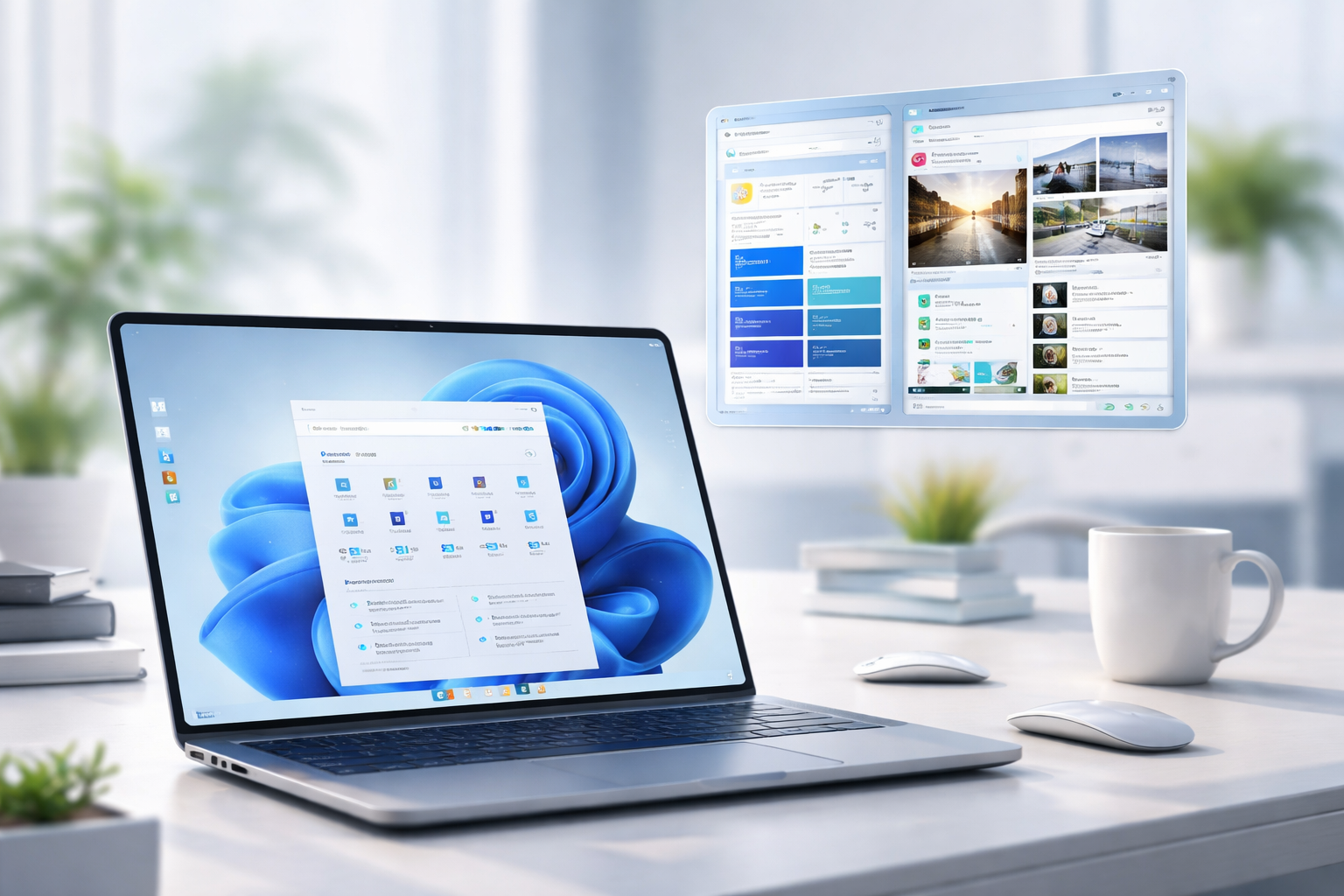
Exploring Windows 11 April 2026 Update: New Features, Enhancements, and Fixes
You are about to delve into the details of the Windows 11 April 2026 Update. This document provides a comprehensive overview of the changes implemented, focusing on new functionalities, improvements to existing features, and resolutions for previously identified issues. Your understanding of these updates will assist you in leveraging the operating system more effectively.
This section outlines fundamental improvements made to the Windows 11 core. These changes aim to bolster performance, stability, and system resource management.
Performance Optimizations
You will notice a series of underlying adjustments designed to enhance the fluidity of your interactions. These optimizations are not always visible as discrete features but contribute significantly to the overall user experience.
Reduced Boot Times
Improvements have been made to the boot sequence, resulting in a marginal but measurable decrease in the time it takes for your system to start up. This involves refinement of driver loading processes and pre-fetching mechanisms.
Application Launch Acceleration
Windows 11 now employs more efficient caching strategies for frequently used applications. This translates to quicker launch times for your primary productivity tools and entertainment software. You may not perceive a dramatic difference in every application, but average launch performance has improved.
Resource Management Refinements
The operating system’s ability to manage system resources, particularly CPU and memory, has been fine-tuned. This can lead to a more responsive experience during multitasking, with fewer instances of applications contending for critical resources.
Security and Privacy Updates
Your digital security and privacy remain paramount. This update introduces several new measures and strengthens existing protections to safeguard your data and system integrity.
Enhanced Credential Guard
Credential Guard now offers an additional layer of protection against credential theft attacks. This involves further isolation of sensitive authentication data, making it more resilient to advanced persistent threats. You should experience no change in your daily authentication workflow, but the underlying security posture is stronger.
Advanced Phishing Protection
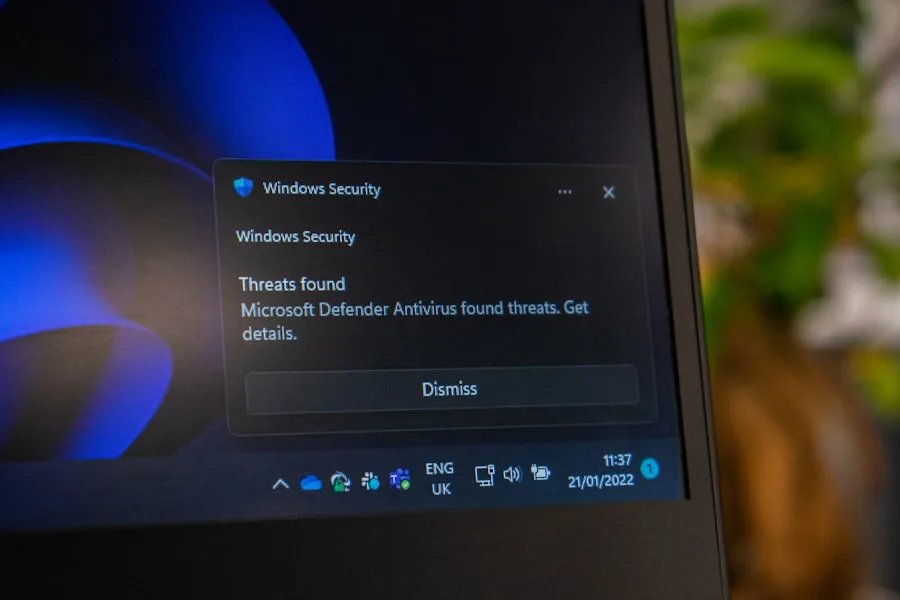
The built-in phishing protection mechanisms have been updated with new heuristics and a broader database of known phishing sites. When you encounter suspicious websites, you will receive more accurate and timely warnings, helping you avoid malicious content.
Granular Telemetry Controls
You now have more refined control over the telemetry data your system collects and shares with Microsoft. New options allow you to disable specific categories of data collection that were previously bundled. This provides you with greater transparency and choice regarding your privacy settings.
Accessibility Improvements
Microsoft continues its commitment to making Windows accessible to a wider audience. This update includes several enhancements designed to improve usability for individuals with various needs.
Refined Narrator Experience
The Narrator screen reader has undergone significant refinement. You will find improvements in its responsiveness, accuracy in reading complex layouts, and support for a wider range of applications and web content. New voice profiles have been added, allowing for greater customization of the Narrator’s output.
Enhanced Live Captions
Live Captions now supports additional languages and exhibits improved accuracy in transcribing spoken audio. You can also customize the appearance of captions more extensively, including font size, color, and background opacity, to suit your visual preferences.
Voice Access Enhancements
Voice Access, the feature that allows you to control your PC with your voice, has been enhanced with new commands and improved recognition of natural language. You can navigate the operating system, launch applications, and interact with various UI elements more intuitively using your voice.
In the context of the recent Windows 11 April 2026 Update, it’s interesting to explore how software updates can impact productivity and user experience. For those looking to enhance their understanding of successful software development and deployment strategies, a related article can provide valuable insights. You can read more about building a successful startup and the importance of continuous improvement in software by visiting this link: Building a Successful Startup.
User Interface Revisions
The visual experience of Windows 11 has received attention in this update. These revisions aim to create a more consistent, intuitive, and aesthetically pleasing environment for your daily computing tasks.
Start Menu and Taskbar Modernization
The Start Menu and Taskbar, core components of your Windows interaction, have been further refined. These adjustments focus on improving usability and visual coherence.
Dynamic Start Menu Content
The “Recommended” section of the Start Menu now adapts more intelligently to your usage patterns. You will see more relevant files, applications, and web links based on your recent activity, aiming to make your most important items more accessible.
Pinned Apps Grouping
You now have the ability to create folders for pinned applications within the Start Menu. This allows for better organization of your frequently used software, reducing clutter and improving navigation. You can drag and drop applications onto each other to create these groups.
Taskbar Overflow Menu
For those who keep a large number of applications open, the Taskbar now features an intelligent overflow menu. Rather than shrinking icons excessively, less frequently used application icons will be consolidated into a discreet menu, maintaining readability and access to active applications.
File Explorer Enhancements
File Explorer, your primary tool for managing files and folders, has received several functional and aesthetic improvements. These changes aim to streamline your file management workflows.
Tabbed Interface Refinements
The tabbed interface within File Explorer has been further refined. You can now drag and drop tabs to rearrange them, and new options allow for more granular control over tab behavior, a more robust tab management experience.
Enhanced Preview Pane Options
The Preview Pane now supports a broader range of file types, allowing you to view content without opening the associated application. This includes various document formats, image types, and even certain video codecs. You can also resize the preview pane more flexibly.
Context Menu Customization
You gain more control over the content displayed in the File Explorer context menu. New settings allow you to hide or show specific options, reducing visual clutter and streamlining your access to frequently used commands.
Notification Center Overhaul
The Notification Center has been reimagined to provide a more effective and less intrusive notification experience. This overhaul focuses on clarity, prioritization, and actionable notifications.
Prioritized Notifications
Notifications are now intelligently prioritized based on their source and your interaction history. Critical system alerts and messages from frequently used applications will be more prominent, while less urgent notifications may be grouped or discreetly presented.
Actionable Quick Settings
The Quick Settings panel within the Notification Center has been redesigned for improved usability. You can now customize the arrangement of quick toggles more easily and access additional settings directly from this panel without navigating to the main Settings application.
Focus Assist Integration
Focus Assist integration has been deepened. You can now configure Focus Assist directly from the Notification Center, setting custom rules for when you wish to minimize distractions without interrupting your current workflow. Notifications will be buffered and presented once Focus Assist is deactivated.
Application and Integration Updates
This section details improvements and new features within various stock applications and how they integrate with the operating system.
Photos and Media Enhancements
Your experience with images and media has been a focus, with new features and improvements to the Photos app and media playback capabilities.
AI-Powered Image Organization
The Photos application now incorporates artificial intelligence to assist with image organization. It can automatically categorize your photos based on content, location, and even facial recognition, making it easier to find specific images within your collection. This feature can be enabled or disabled in the settings.
Advanced Video Editing Tools
A suite of new, more advanced video editing tools has been integrated directly into the Photos app. You can perform basic trimming, cropping, and color correction on your video clips without needing a separate application. Filters and overlay options have also been added for creative expression.
Spatial Audio Integration
Windows 11 now offers enhanced support for spatial audio experiences across a wider range of headsets and sound systems. This provides a more immersive audio environment for gaming, movies, and music, with improved directional sound cues. You can configure this in the Sound settings.
Mail and Calendar Refinements
The Mail and Calendar applications have received updates aimed at improving your productivity and communication workflows.
Unified Inbox View
The Mail application now offers a unified inbox view, consolidating emails from multiple accounts into a single, navigable stream. This simplifies the management of your various email addresses and reduces the need to switch between different inboxes.
Meeting Room Finder
The Calendar application now includes an intelligent meeting room finder. When you schedule a meeting, the application can suggest available meeting rooms based on your location, attendee count, and equipment requirements, simplifying the planning process.
Email Thread Management
Improvements have been made to email thread management. You can now collapse and expand entire email conversations more intuitively, making it easier to follow lengthy discussions and focus on relevant messages. New sorting options for threads are also available.
Microsoft Teams Integration Expansion
The integration of Microsoft Teams into Windows 11 continues to expand, offering more seamless communication and collaboration features directly from your operating system.
Enhanced Notification Sync
Notifications from Microsoft Teams are now more tightly integrated with the Windows Notification Center. You will experience more consistent and reliable synchronization of messages and calls, ensuring you do not miss important communications. You can also reply directly from the notification.
Quick Access from Taskbar
A dedicated quick access icon for Microsoft Teams has been added to the Taskbar, allowing you to launch the application or view recent activity with a single click. This provides immediate access to your team communications without navigating through the Start Menu.
File Sharing Improvements
Sharing files directly into Teams from File Explorer has been streamlined. You can now right-click on a file and select “Share to Teams” with options to choose the channel or chat recipient, reducing steps in the collaboration process.
System Management and Settings
The way you manage your system and configure settings has been revised to provide a more intuitive and comprehensive experience.
Redesigned Settings Application
The Settings application has undergone a significant redesign, focusing on a more logical organization of options and improved search functionality.
Streamlined Navigation
The layout of the Settings application has been streamlined, with clearer categories and subcategories. This aims to reduce the time it takes for you to find specific settings and provide a more intuitive browsing experience.
Enhanced Search Functionality
The search bar within the Settings application now offers more intelligent results, including suggestions for related settings and direct links to relevant help documentation. You can also search for settings using more natural language queries.
Centralized Privacy Dashboard
A new, centralized Privacy Dashboard has been introduced within the Settings application. This dashboard provides a comprehensive overview of all privacy-related settings, allowing you to manage permissions for applications, mic, camera, and location data from a single location.
Advanced Device Management
Managing your connected devices has become more robust, with new options for controlling peripherals and external hardware.
Bluetooth Device Pairing and Management
Bluetooth device pairing has been simplified, with a more intuitive discovery process and streamlined connection procedures. You can also manage previously paired devices more effectively, including renaming them and viewing detailed connection information.
Multi-Monitor Configuration Improvements
Configuring multiple monitors has been enhanced with new options for screen arrangement and scaling. You can save custom display profiles for different monitor setups, making it easier to switch between various configurations.
USB-C Device Power Management
New power management options for USB-C devices have been introduced. You can now configure specific power delivery settings for connected peripherals, optimizing their performance and energy consumption. This can be particularly useful for external GPUs and high-power accessories.
Task Manager Overhaul
The Task Manager, your tool for monitoring system performance and managing processes, has received a substantial overhaul, focusing on readability and functionality.
Modernized User Interface
The Task Manager now features a modernized user interface that aligns with the visual aesthetic of Windows 11. This includes updated icons, improved typography, and a clearer presentation of performance data.
Enhanced Process Details
You will find more detailed information about running processes, including their resource consumption, network activity, and associated services. This provides a more comprehensive view of what is running on your system.
Performance Graphing Improvements
The performance graphing capabilities have been improved, offering more granular data visualization for CPU, memory, disk, and network usage. You can now customize the timeframes for these graphs to analyze performance trends over longer periods.
The recent article on the Windows 11 April 2026 Update tested highlights several exciting features and improvements that enhance user experience. For those interested in understanding how effective communication can play a role in technology adoption, you might find it insightful to explore the concept of building brand loyalty through authentic email storytelling. This approach can be particularly relevant for tech companies looking to engage their audience more effectively. You can read more about it in this article.
Bug Fixes and Stability Improvements
| Category | Details |
|---|---|
| New Features | Start Menu Redesign, Snap Layouts, Virtual Desktops, Microsoft Store Overhaul |
| Improved Features | Microsoft Teams Integration, Gaming Performance, Taskbar Customization |
| Fixed Issues | Taskbar Freezing, Bluetooth Connectivity Problems, File Explorer Crashes |
Beyond new features, a significant part of this update is dedicated to addressing existing issues and bolstering the overall stability of the operating system.
General System Stability
Numerous general bug fixes have been implemented to enhance the stability and reliability of Windows 11. These fixes address a wide range of issues that could lead to crashes, freezes, or unexpected behavior.
Memory Leak Resolutions
Several identified memory leaks that could lead to gradual system performance degradation over extended usage have been resolved. This contributes to a more consistent and responsive experience without the need for frequent restarts.
Driver Compatibility Fixes
Updates include a broad set of driver compatibility fixes, addressing issues with various hardware components. This improves the reliability of peripherals and reduces instances of system instability caused by driver conflicts.
Crash and Freeze Reductions
Extensive efforts have been directed towards identifying and resolving common causes of system crashes and freezes. You should experience a measurable reduction in unexpected system shutdowns or applications becoming unresponsive.
Application Compatibility Fixes
This update also addresses compatibility issues with specific third-party applications, ensuring a smoother experience across a diverse software ecosystem.
Legacy Software Support Improvements
Improvements have been made to the compatibility layers for older, legacy software. This enables better functionality and stability for applications that may not have been specifically designed for Windows 11. You may find older personal applications now run more reliably.
Modern Application Bug Resolutions
Bugs affecting the performance and stability of various modern applications, including those from the Microsoft Store, have been addressed. This ensures a consistent and reliable experience when using up-to-date software.
Gaming Performance Patches
Specific patches have been deployed to resolve performance issues reported in various video games. This includes optimizations related to frame rate stability, input lag, and graphics rendering glitches, offering a more consistent gaming experience.
Network and Connectivity Fixes
Your network and connectivity experience has also received attention, with fixes aimed at improving Wi-Fi, Bluetooth, and internet connection stability.
Wi-Fi Reliability Enhancements
Fixes have been applied to improve the reliability of Wi-Fi connections, addressing issues related to frequent disconnections, slow speeds, or difficulty connecting to certain networks. Your wireless experience should now be more consistent.
Bluetooth Device Connection Stability
The stability of Bluetooth device connections has been enhanced. This resolves issues with audio dropouts, device pairing failures, and intermittent connectivity for various Bluetooth peripherals.
VPN Connection Optimizations
Optimizations have been made to Virtual Private Network (VPN) connection handling. This can result in more stable and efficient VPN connections, with fewer interruptions or performance bottlenecks. You will experience a more robust remote access capability.
FAQs
1. What are the new features in the Windows 11 April 2026 Update?
The Windows 11 April 2026 Update introduces new features such as improved multitasking capabilities, a redesigned Start menu, and enhanced touch gestures for touchscreen devices.
2. What improvements can users expect from the Windows 11 April 2026 Update?
Users can expect improvements in performance, security, and compatibility with a wider range of devices. Additionally, the update includes enhancements to the Windows Store and updates to built-in apps.
3. What issues have been fixed in the Windows 11 April 2026 Update?
The update addresses various issues related to system stability, app compatibility, and security vulnerabilities. Specific fixes include addressing known bugs in the operating system and resolving issues with certain hardware configurations.
4. Will the Windows 11 April 2026 Update be available for all Windows 11 users?
Yes, the Windows 11 April 2026 Update will be available for all Windows 11 users as a free update. Users can check for the update in the Windows Update settings and download it when it becomes available.
5. How can users prepare for the Windows 11 April 2026 Update?
To prepare for the Windows 11 April 2026 Update, users should ensure that their device meets the minimum system requirements and has sufficient storage space for the update. It is also recommended to back up important files and create a system restore point before installing the update.
